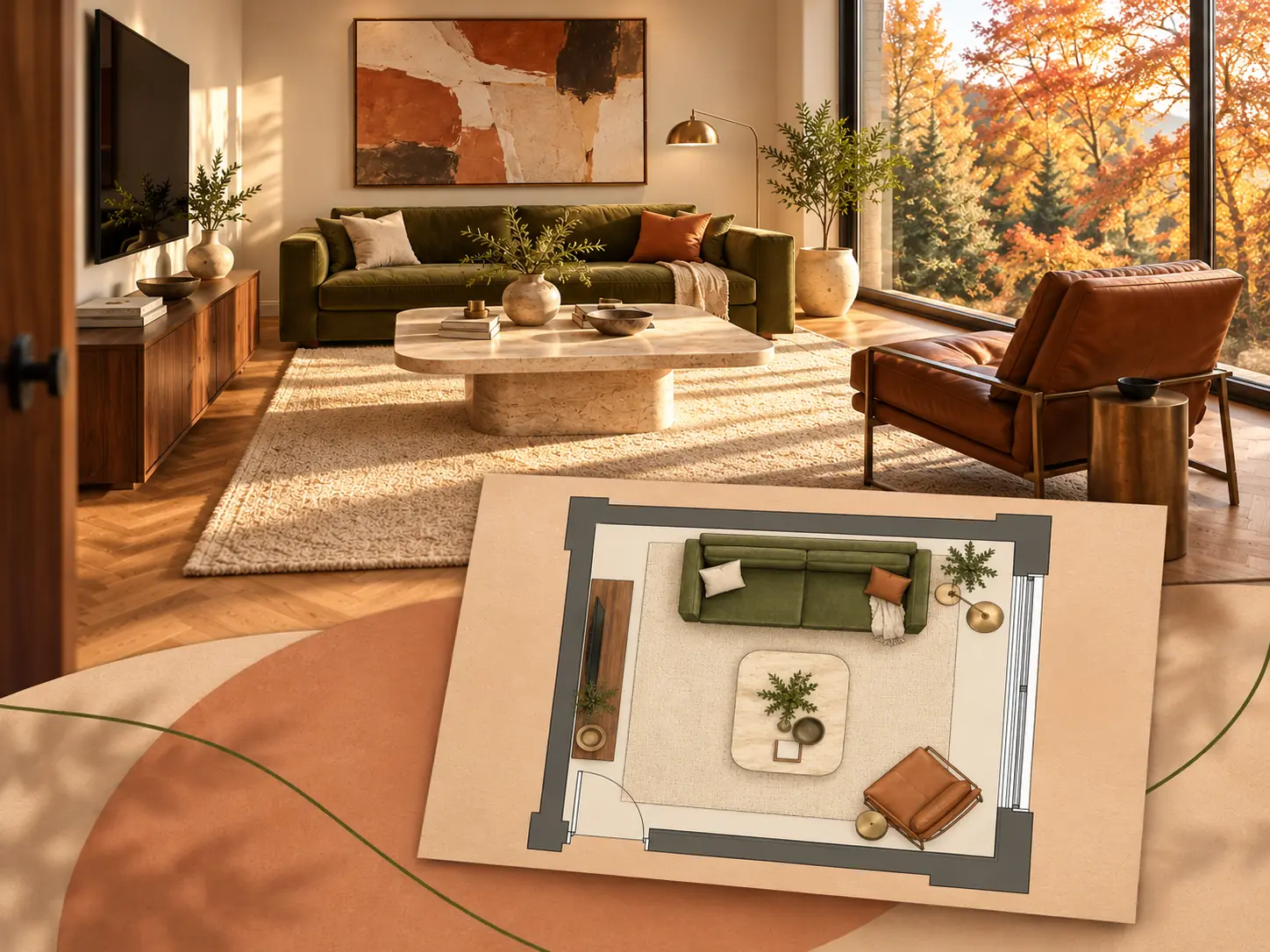
Living Room Image to Floor Plan
Turn a living room image into a furnished layout showing the seating area, coffee table, media console and visible openings.
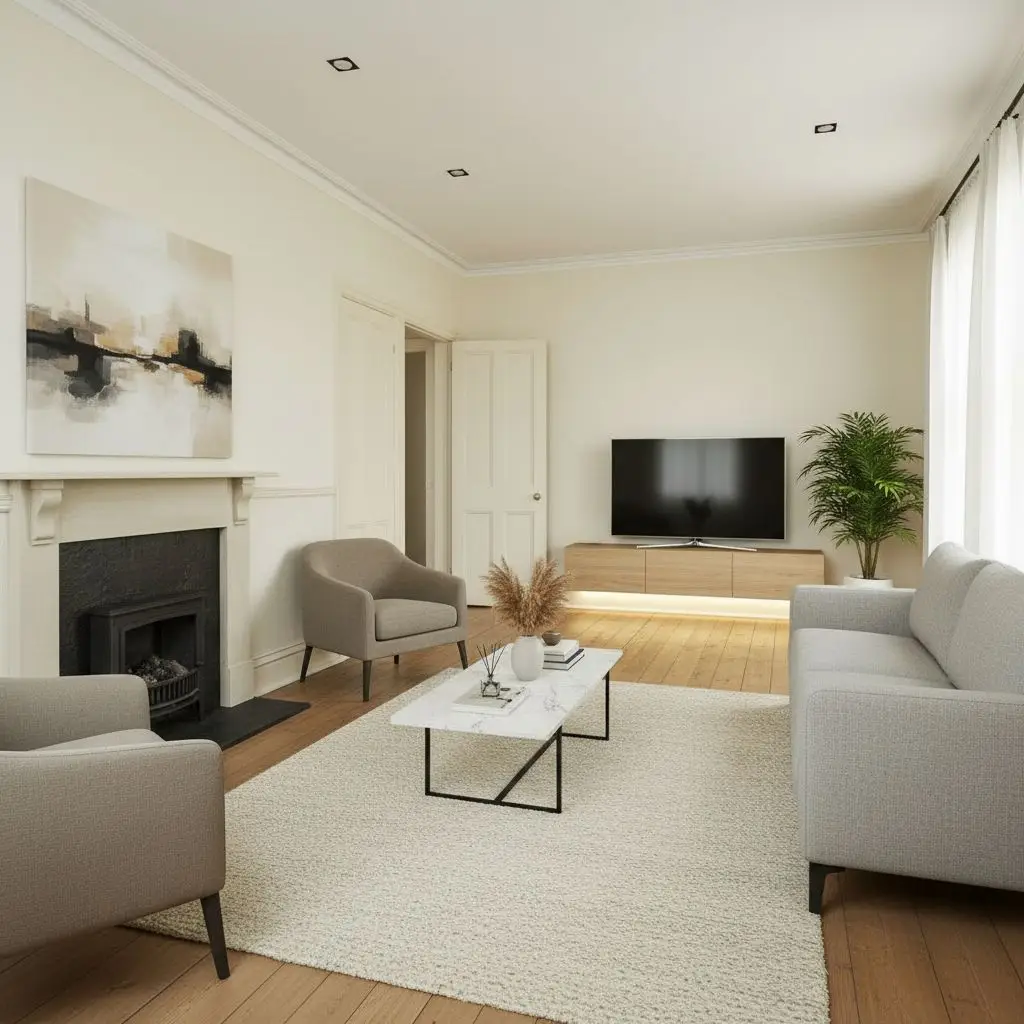
Upload, camera, or try examples
PNG, JPG, JPEG, WEBP up to 50MB
Design Presets
With Furniture · Technical
Upload a room photo or realistic interior rendering and generate a clear 2D floor plan with AI. Choose a plan style and see the room layout from above.
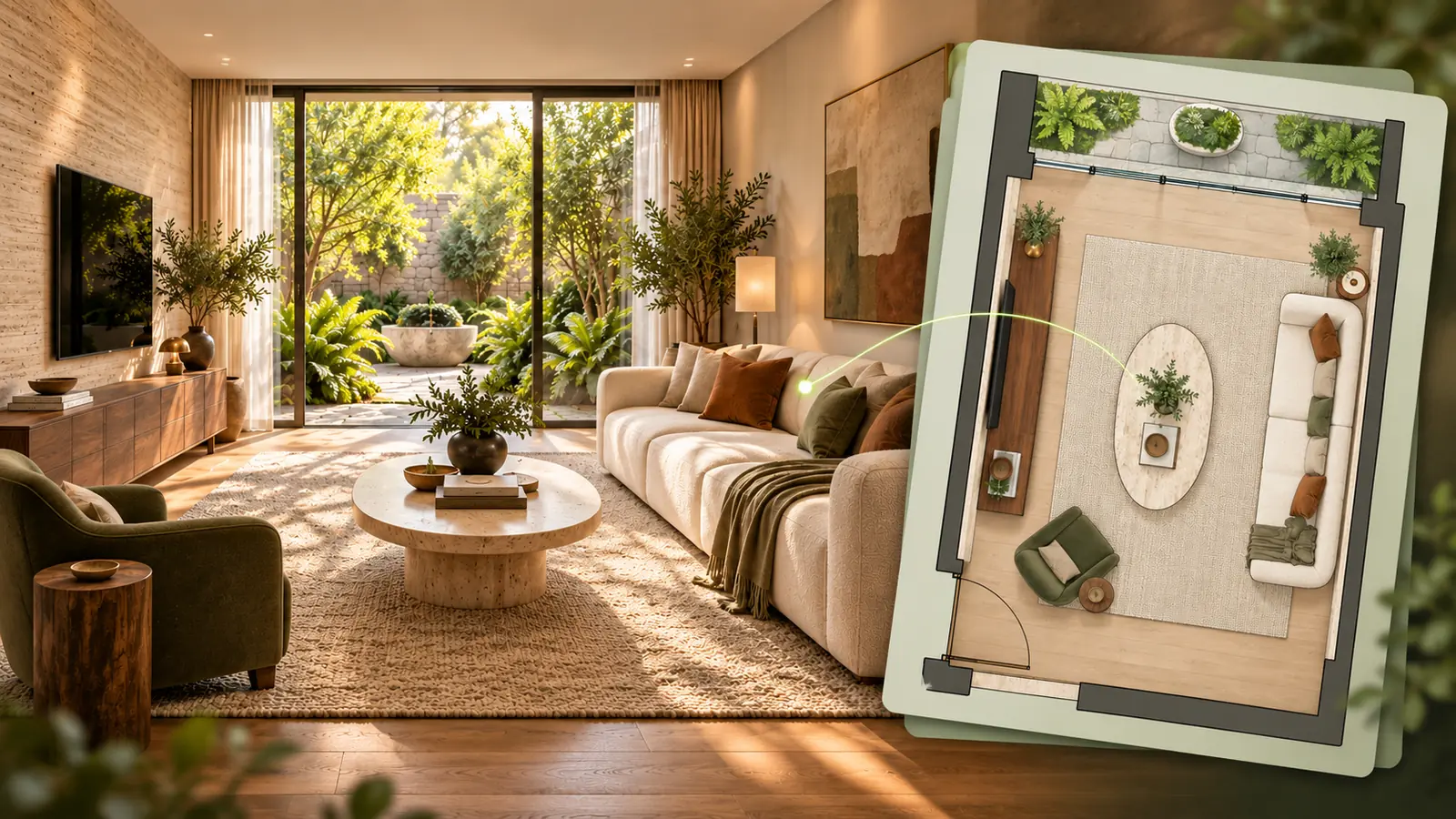

Create your first design
Upload a photo of your home to quickly generate your first AI renovation design.
Create your first design
Convert a room photo or realistic interior rendering into a clear 2D floor plan. Upload your image, choose a drawing style and explore the visible room layout from above.
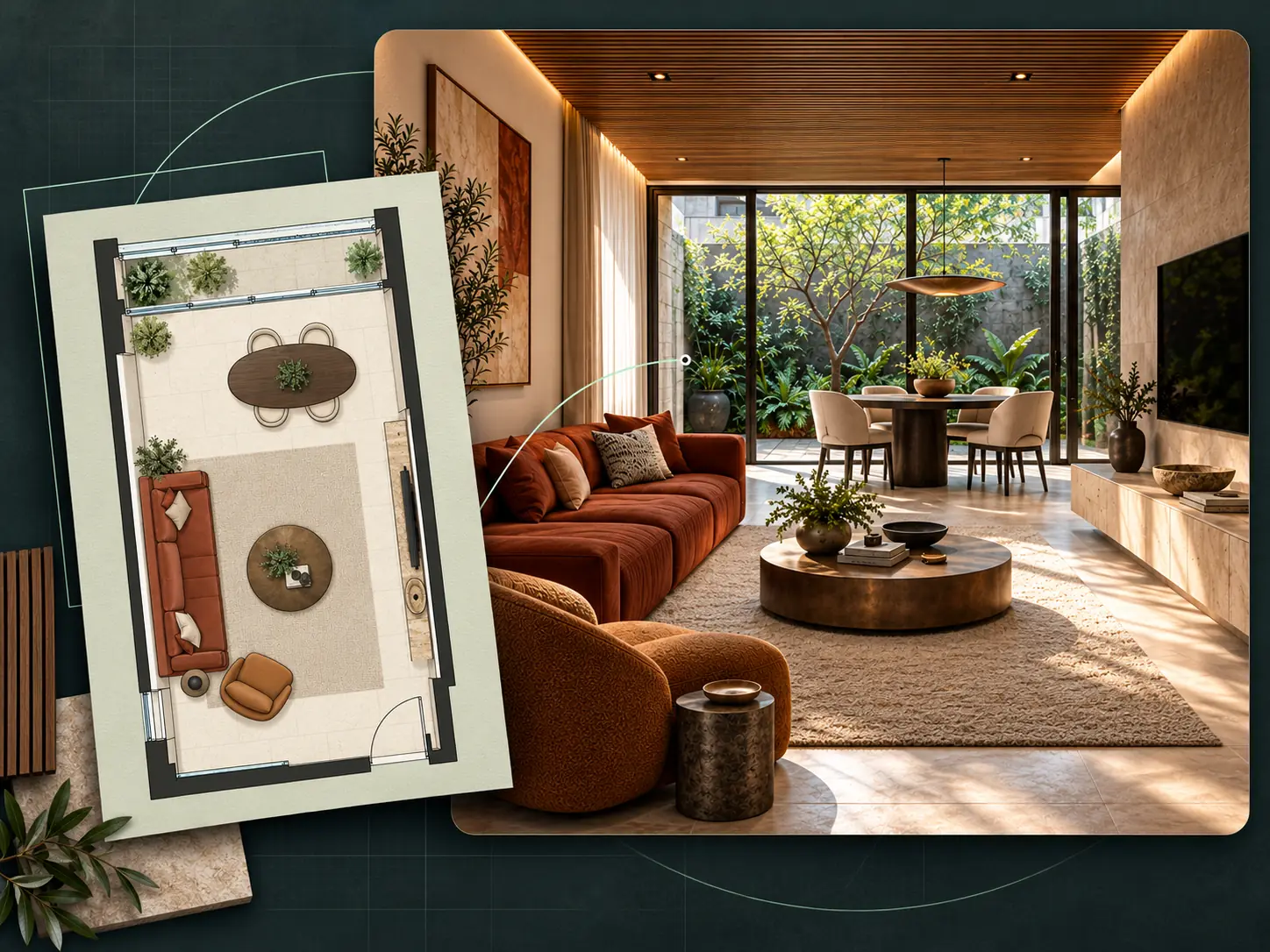
PHOTO TO FLOOR PLAN EXAMPLES
Explore six examples of realistic interior renderings transformed into furnished 2D floor plans. Compare the room image with its layout, including the main furniture, visible openings and functional zones.
Turn a living room image into a furnished layout showing the seating area, coffee table, media console and visible openings.
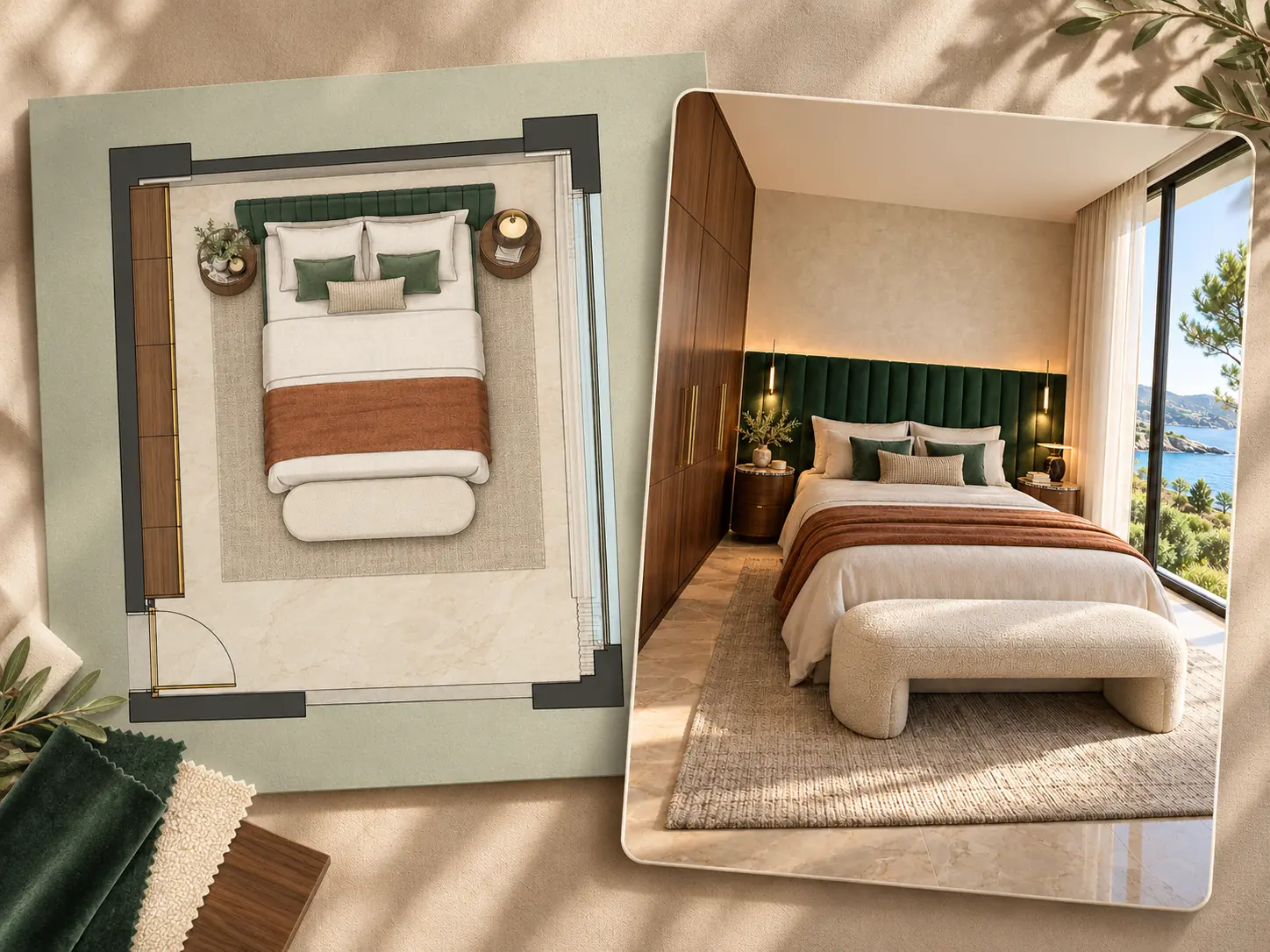
Review the bed, bedside tables, wardrobe and bench in a bedroom layout generated from an interior image.
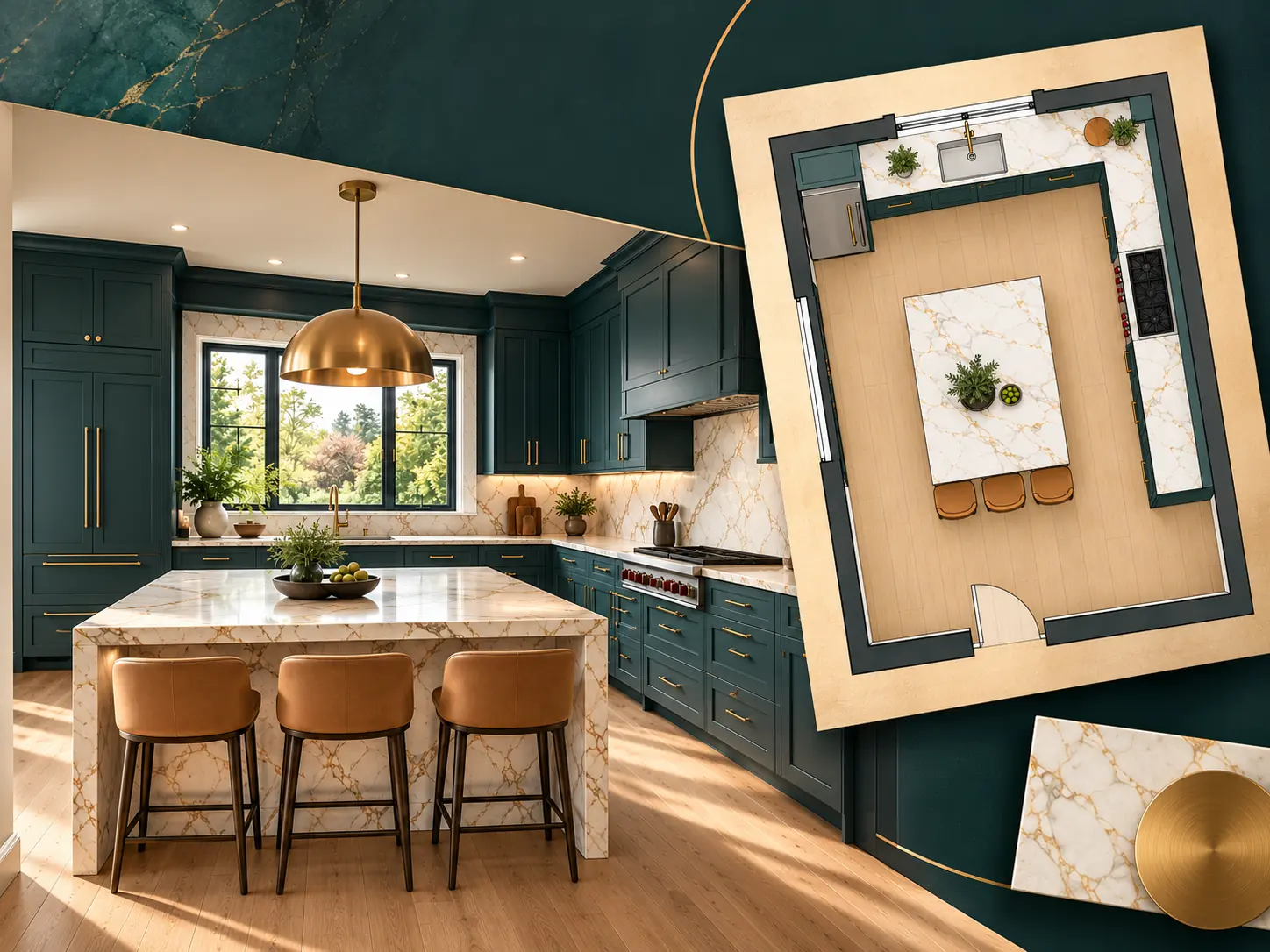
See the visible cabinets, appliances, marble island and seating arranged in a clear kitchen floor plan.
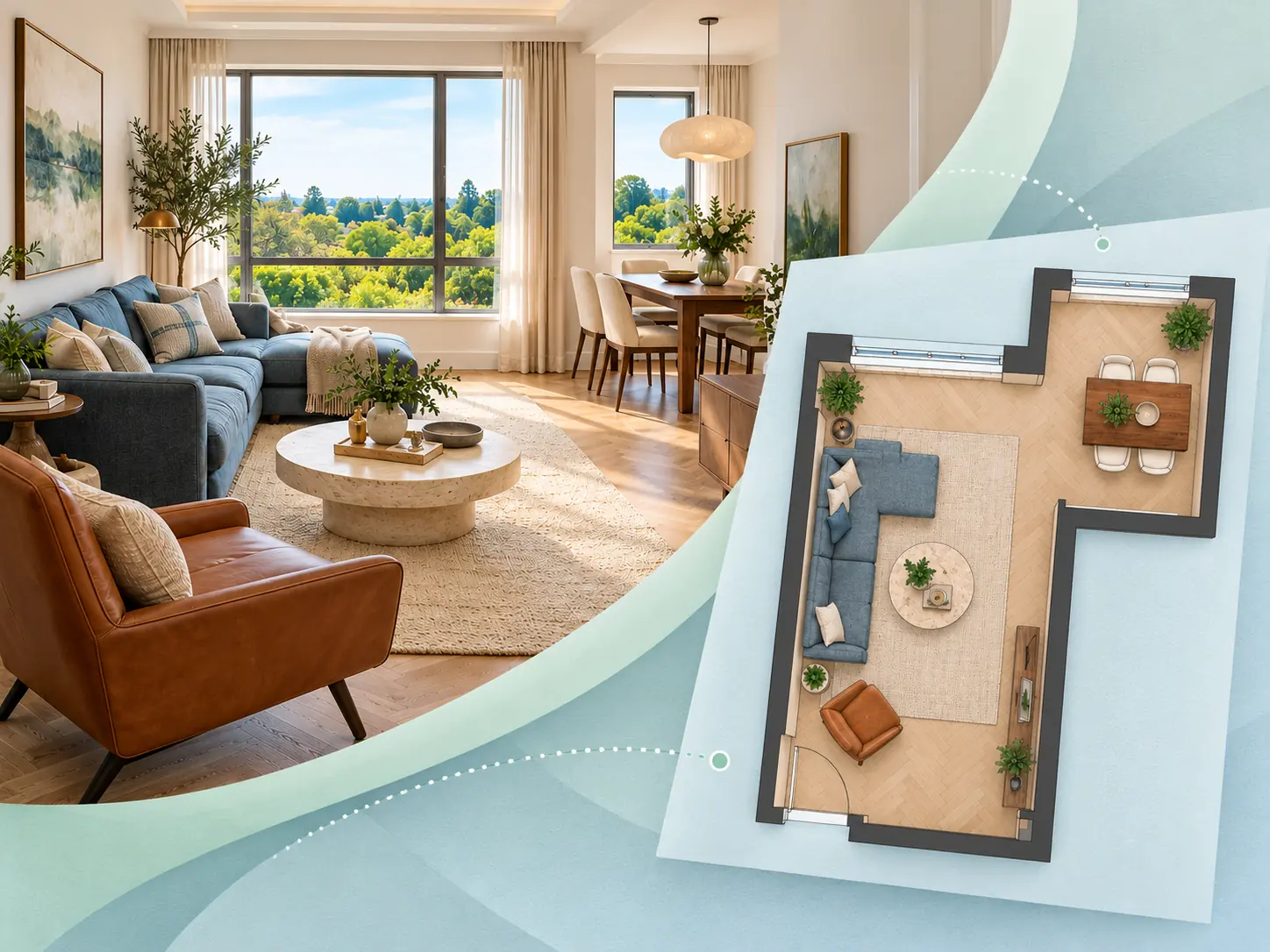
Understand how the seating and dining zones connect in a furnished floor plan of an open-plan interior.
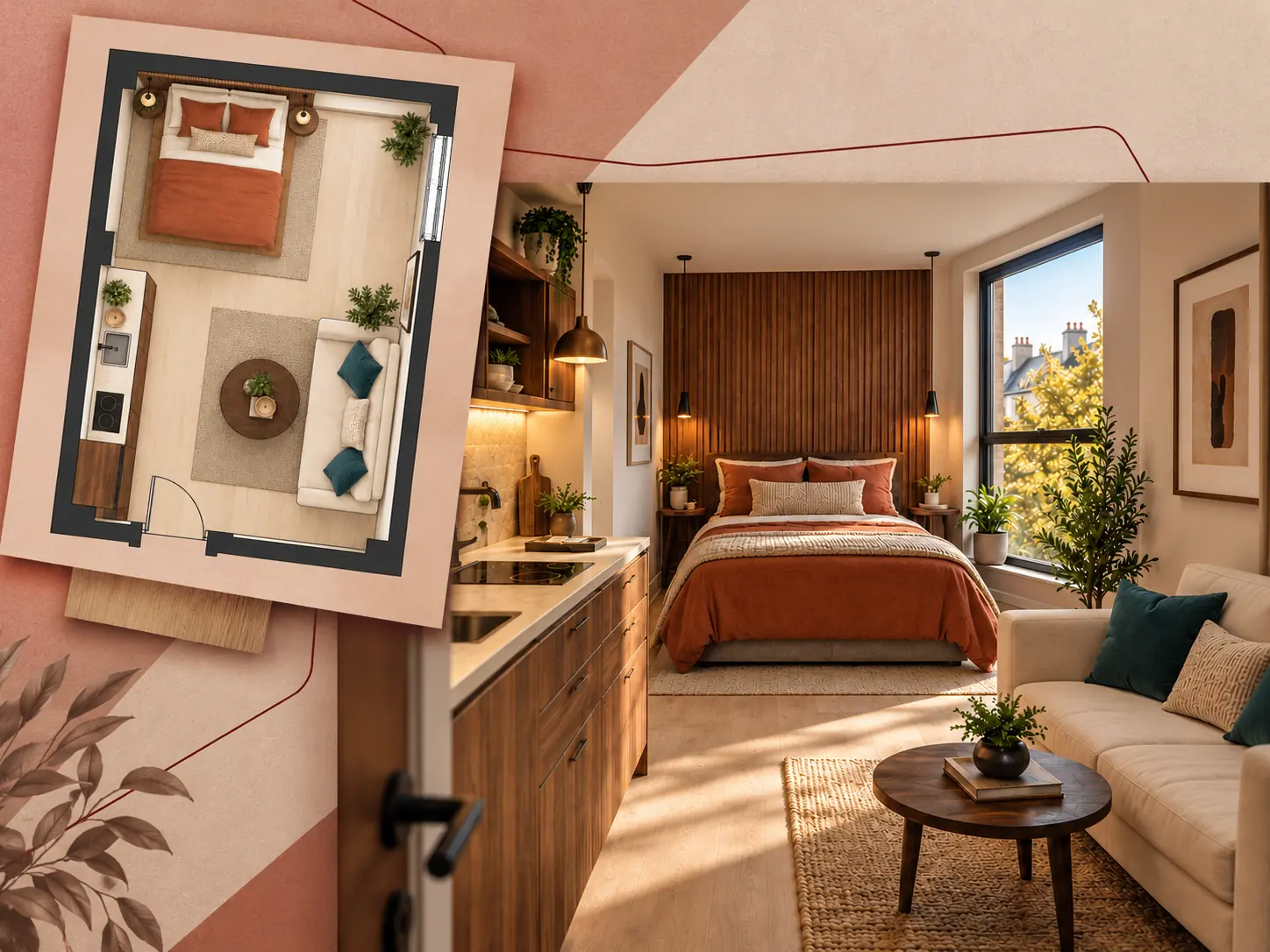
Create a furnished layout concept for a studio whose sleeping, living and kitchen areas are visible in one image.
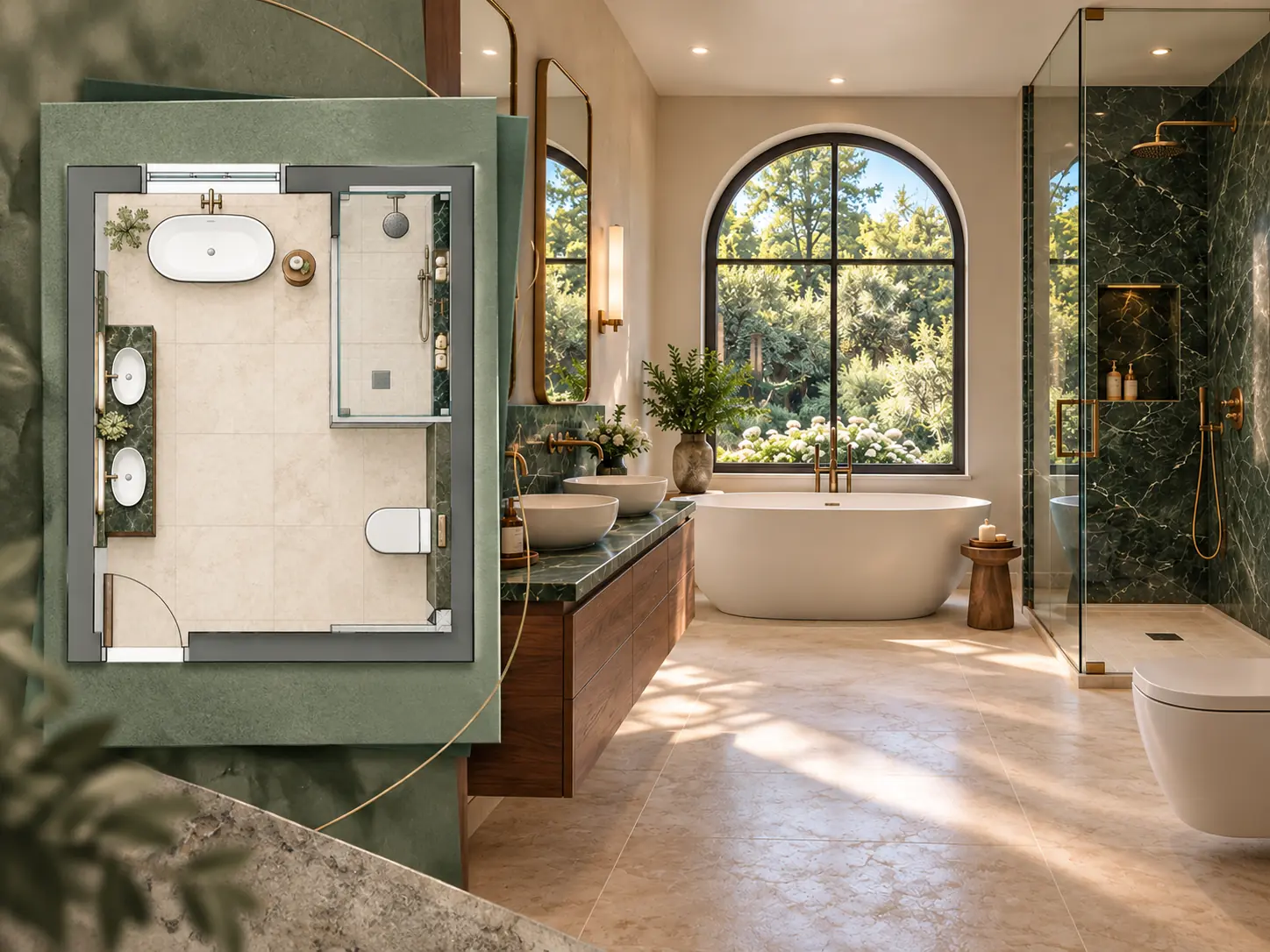
Turn a bathroom rendering into a 2D layout showing the visible bathtub, double vanity, shower and toilet.
An image to floor plan AI tool uses a room photo or realistic interior rendering as a reference to generate a top-down layout. It interprets visible walls, doors, windows and furniture to create a 2D floor plan concept.
Use Dehome as an AI floor plan generator from images: choose a drawing style and switch between Structure Only and With Furniture. The result helps you understand the visible space, compare layout ideas or explain a room more clearly. The plan is a visual estimate based on the source image; exact dimensions and hidden areas need separate verification.
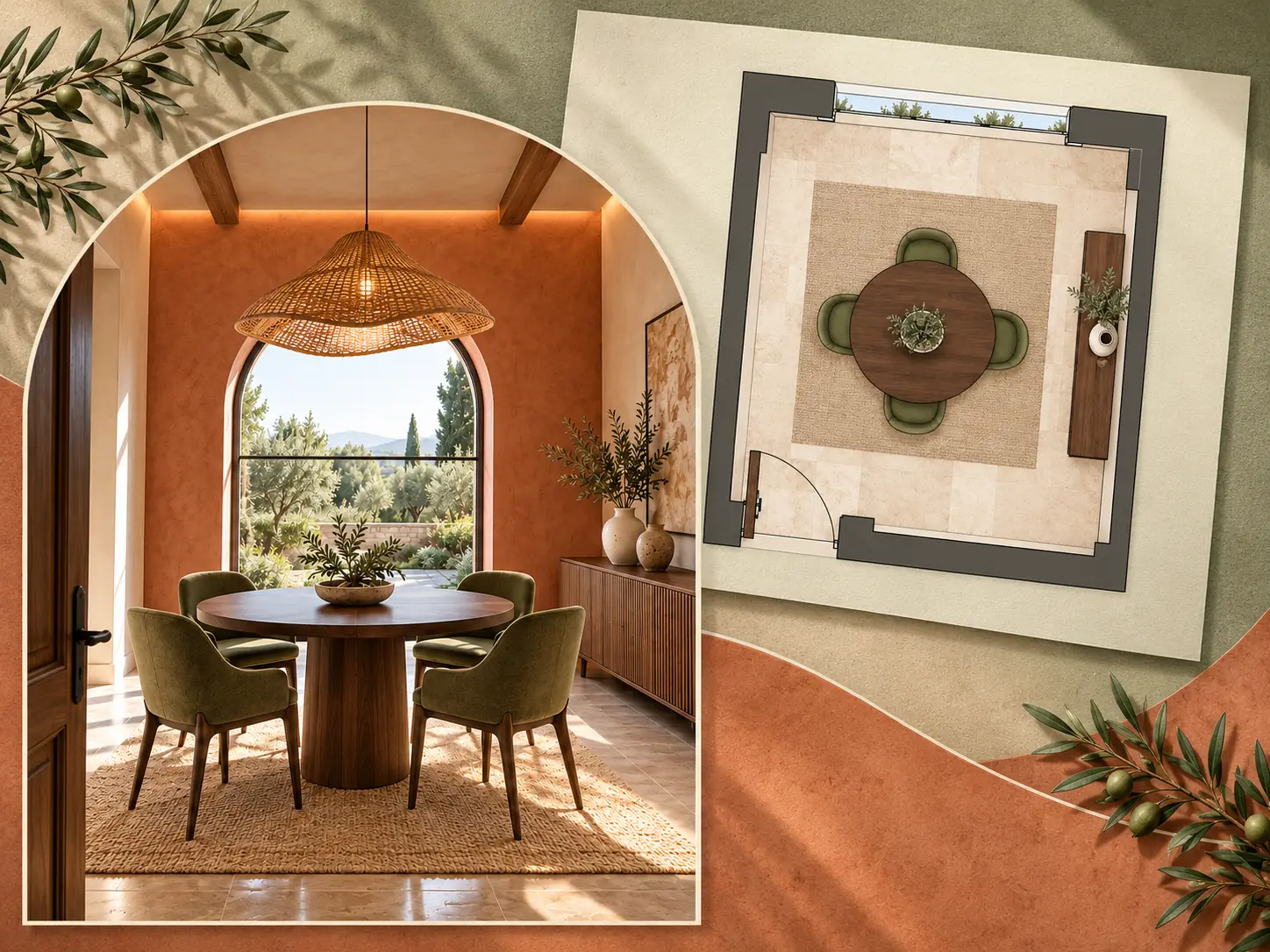
Use an image you already have as the starting point for a floor plan concept.
See the visible room layout in a clear top-down view instead of relying only on perspective.
Focus on the structure or include furniture to explain how the room is arranged.
Choose a plan style that suits the way you want to review or present the layout.
Use a realistic room visualization when you want a simpler 2D layout of the visible space.
Upload an image, choose your settings and generate a floor plan without installing drafting software.
Choose a clear room photo or realistic interior rendering. A wide view with visible corners, openings and furniture gives the AI more spatial context.
Select your plan style, then choose Structure Only or With Furniture. Set the model and output quality for your result.
Generate the 2D layout, compare it with the source image and download the result. Check the inferred room boundaries and openings before using it for further planning.
Generate a 2D floor plan concept from a living room, bedroom, kitchen or other interior photo.
Use a realistic room rendering as the visual reference for a top-down floor plan.
Choose how the generated plan is drawn, including a clean technical presentation.
Show the inferred room footprint and visible openings without furniture symbols.
Include furniture to communicate seating, storage and functional zones more clearly.
Translate a perspective room image into a simpler 2D view of the visible layout.
Choose the available generation model and image quality before creating your plan.
Revisit previous results to compare the floor plan concepts you have created.
Continue planning with Dehome tools for drawing, editing, generating and visualizing floor plans.
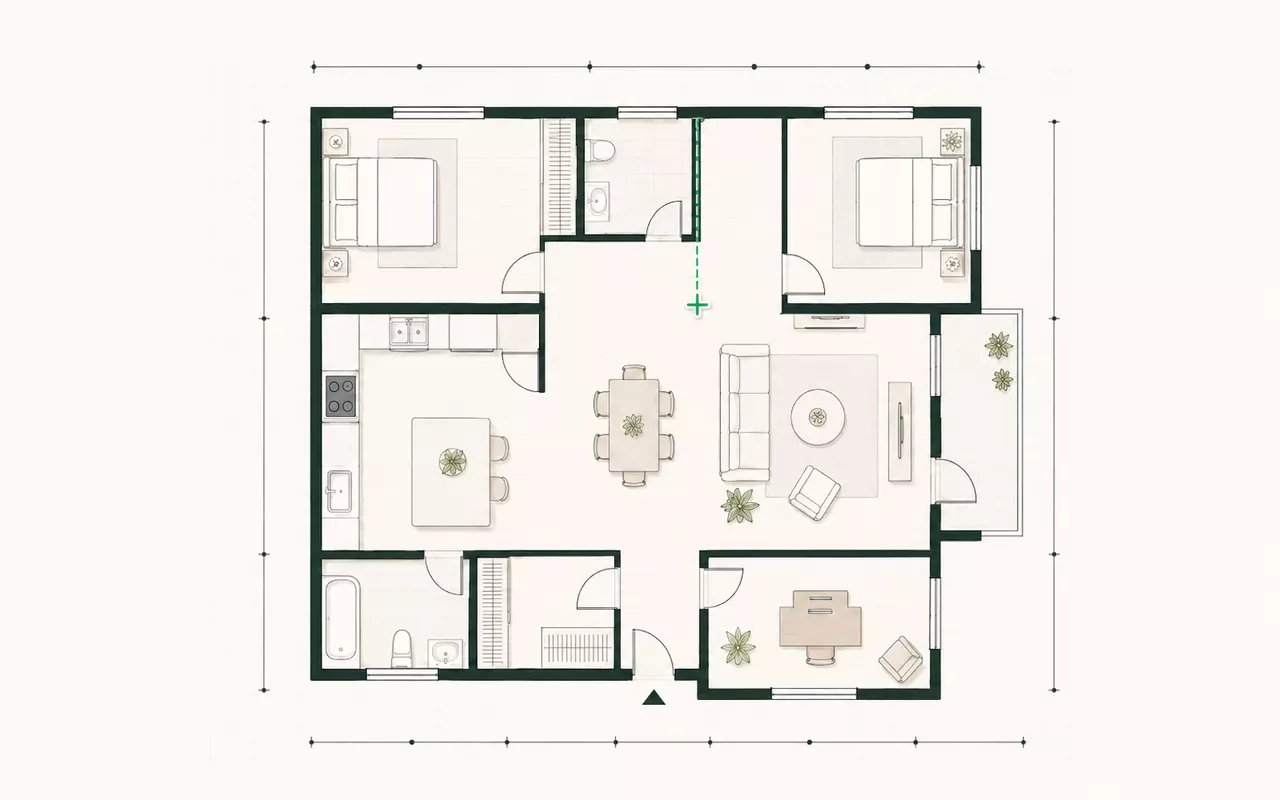
Draw a floor plan online with walls, doors, windows, furniture and dimensions.
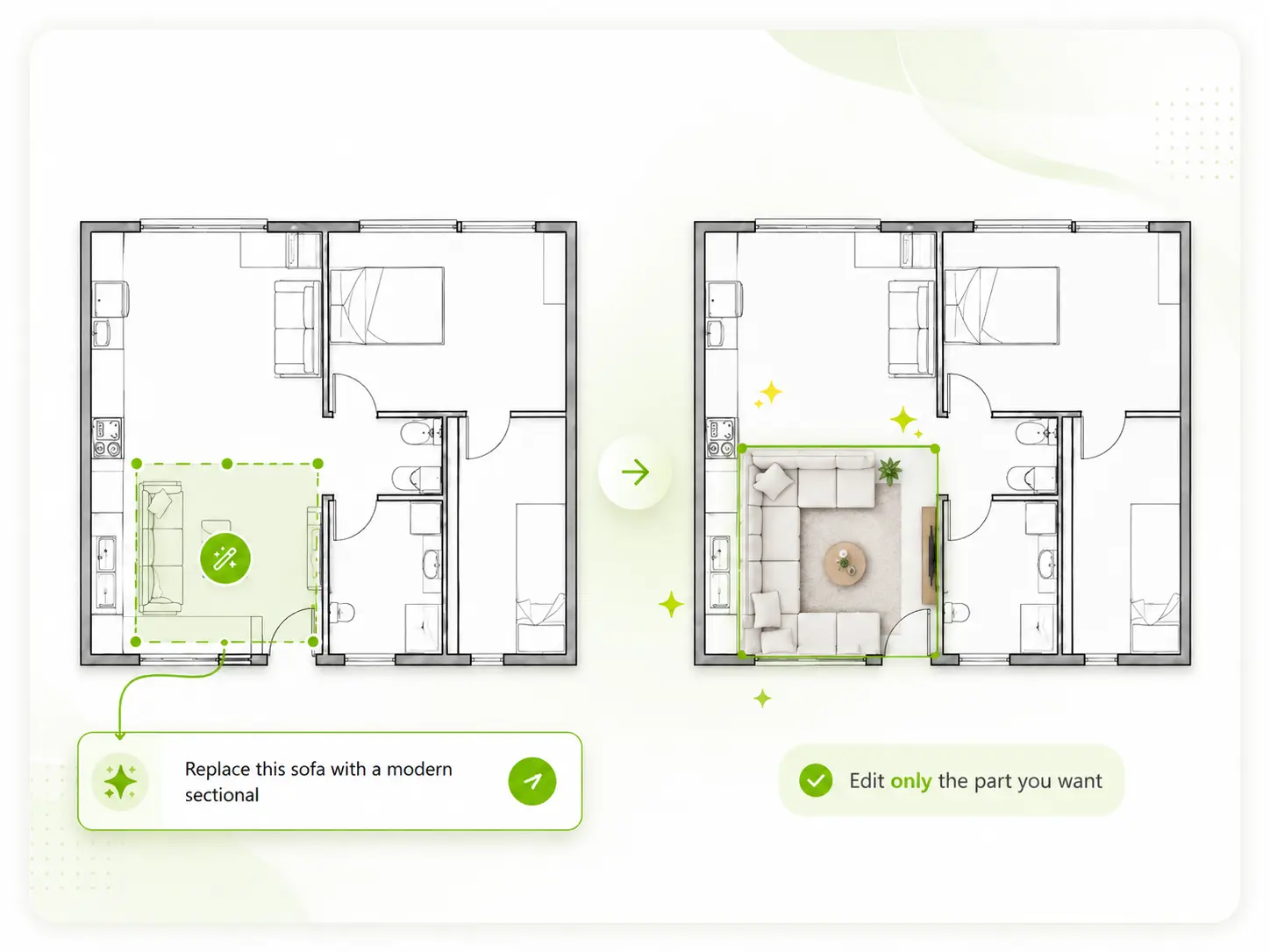
Upload a floor plan image and use AI to change rooms, furniture or layout details.
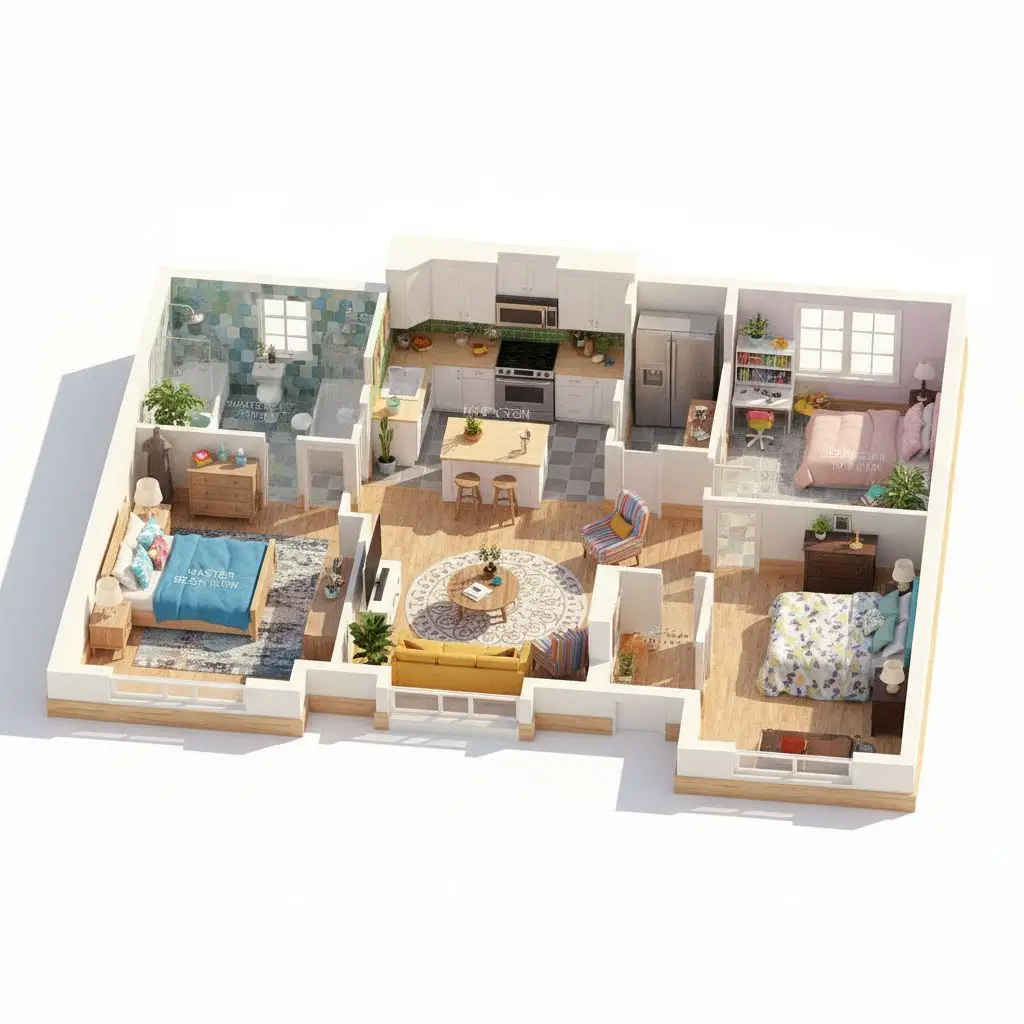
Turn a 2D floor plan image into a furnished 3D floor plan visualization.
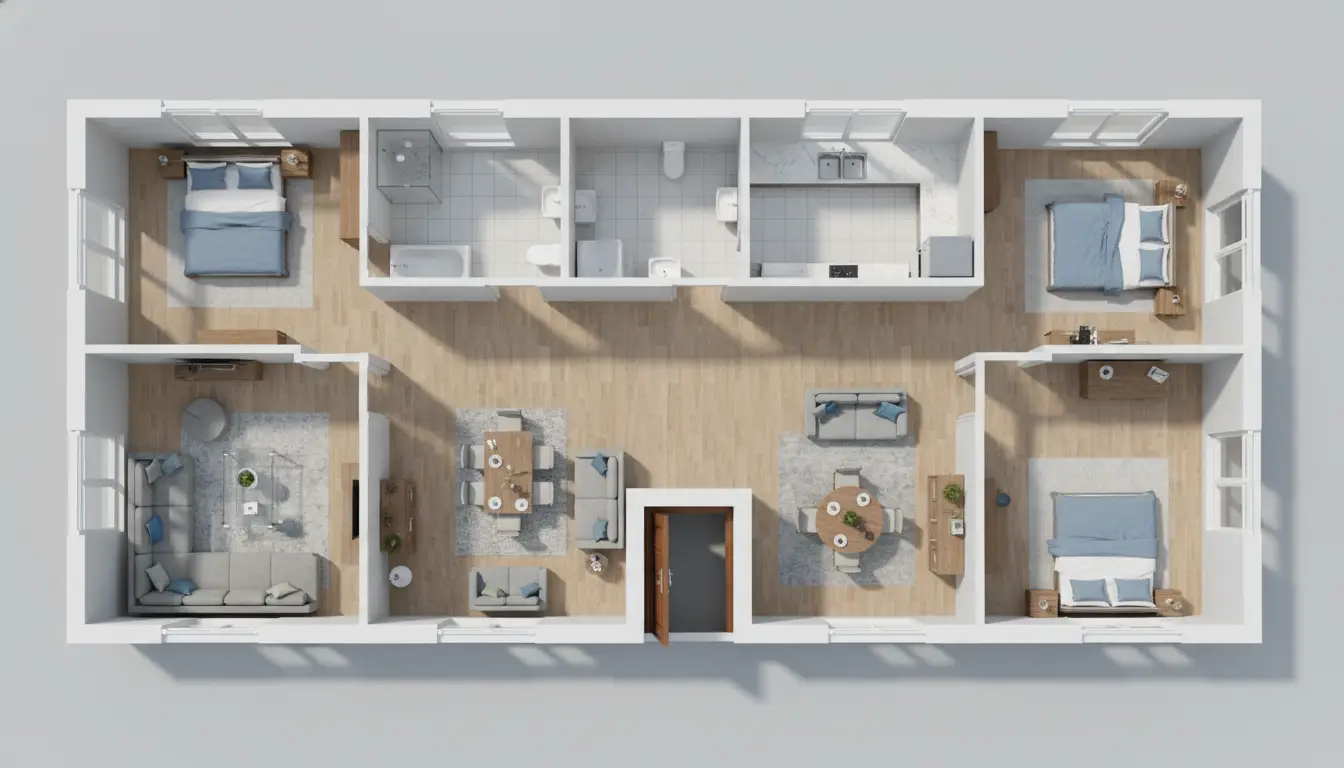
Create a new floor plan concept from room requirements or a text prompt.
Learn how to generate a floor plan from a photo or realistic interior rendering with Dehome.
Image to Floor Plan AI is a tool that generates a top-down 2D floor plan concept from a room photo or realistic interior rendering. It uses visible spatial details as a reference for the layout.
Yes. Upload a clear room photo and Dehome can generate a layout concept based on the walls, openings and furniture visible in the image. The result is an AI-generated interpretation rather than a measured survey.
Use a bright, sharp image that shows as much of the room as possible. A corner view with visible wall boundaries, doors, windows and the floor is usually more informative than a close-up of one object. For a studio or connected space, show the main zones together in one image.
Yes. Upload a realistic interior rendering, such as an eye-level visualization of a living room, bedroom or kitchen, and generate a top-down layout from its visible room structure and furnishings. Use a rendered image rather than a 3D model file.
Yes. Choose Structure Only to focus on the room footprint, walls and openings, or With Furniture to include the visible furniture arrangement in the generated plan.
Generated plans are visual layout estimates based on the source image. A single photo cannot establish exact dimensions or reveal every hidden wall and room. Verify the layout and take measurements before using the result for construction, fitted furniture or other work that depends on precise dimensions.
Upload a photo or realistic interior rendering, choose your plan style and see the visible space as a clear 2D layout.