Review the Proposal on Its Site
Judge how the building sits next to familiar streets and neighboring properties using a photograph of the actual site.
 BLACK FRIDAY20% OFF first subscription · +20% Bonus Credits20% OFF
Upload, camera, or try examples
PNG, JPG, JPEG, WEBP up to 50MB
Design Presets
Scene Type · Architectural Style · Weather
See how a new room, garage or second story could look on your existing home.
 OriginalGenerated result

Create your first design
Upload a photo of your home to quickly generate your first AI renovation design.
Create your first design
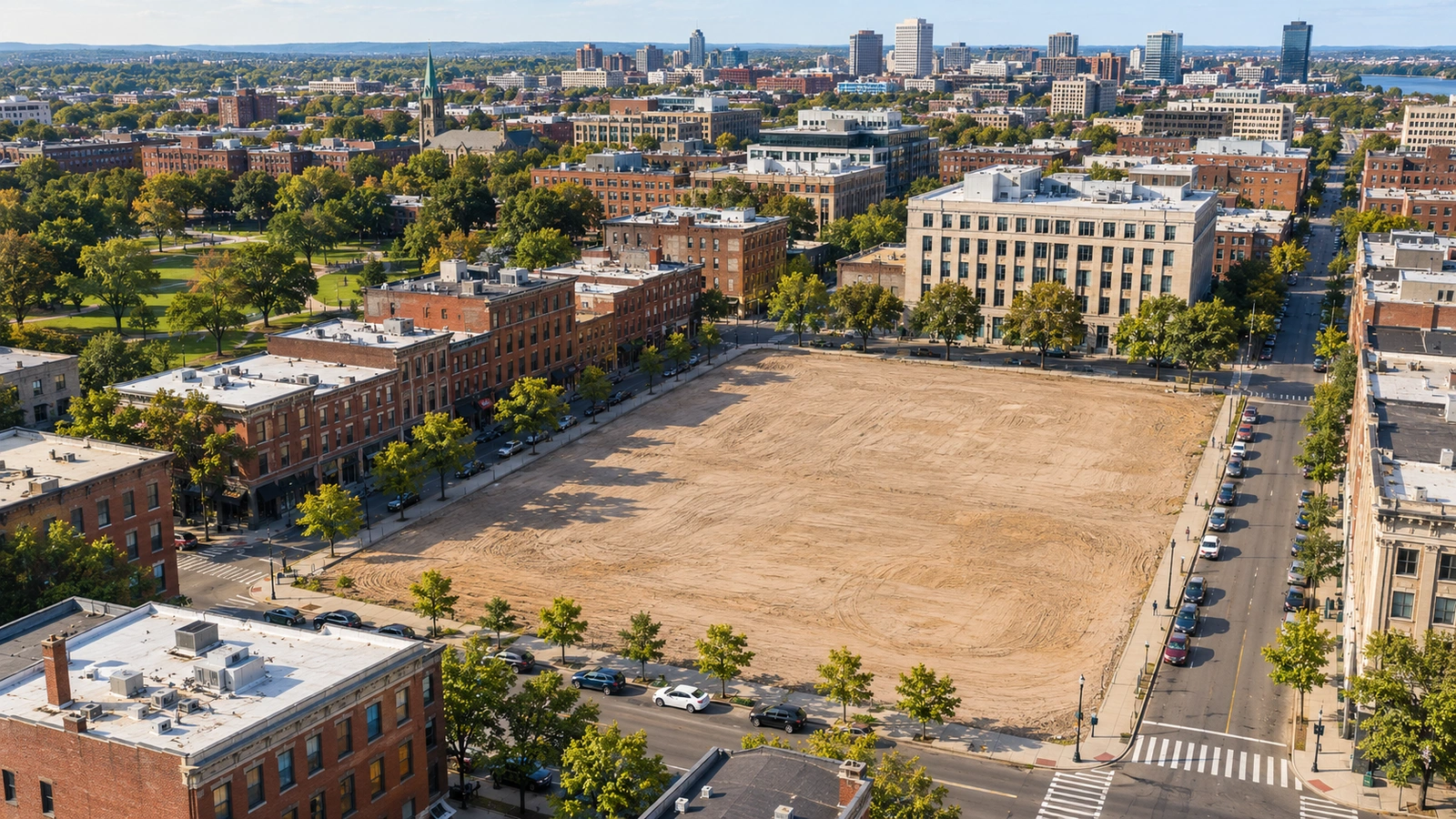
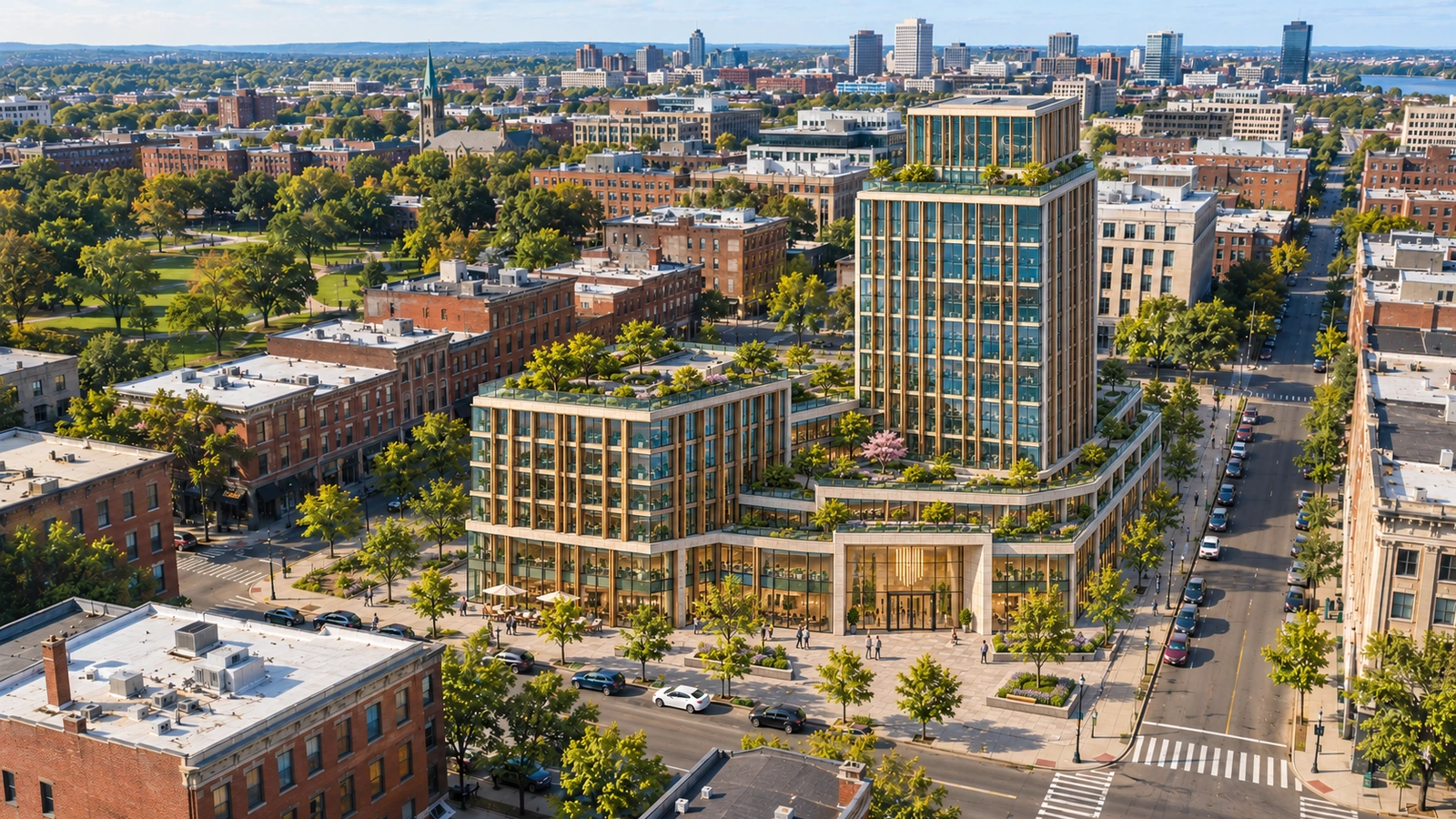
Place a building design into a real site photo. Add a building to a vacant plot or replace one in a selected area, then see how the proposal relates to nearby streets, buildings, and open space.
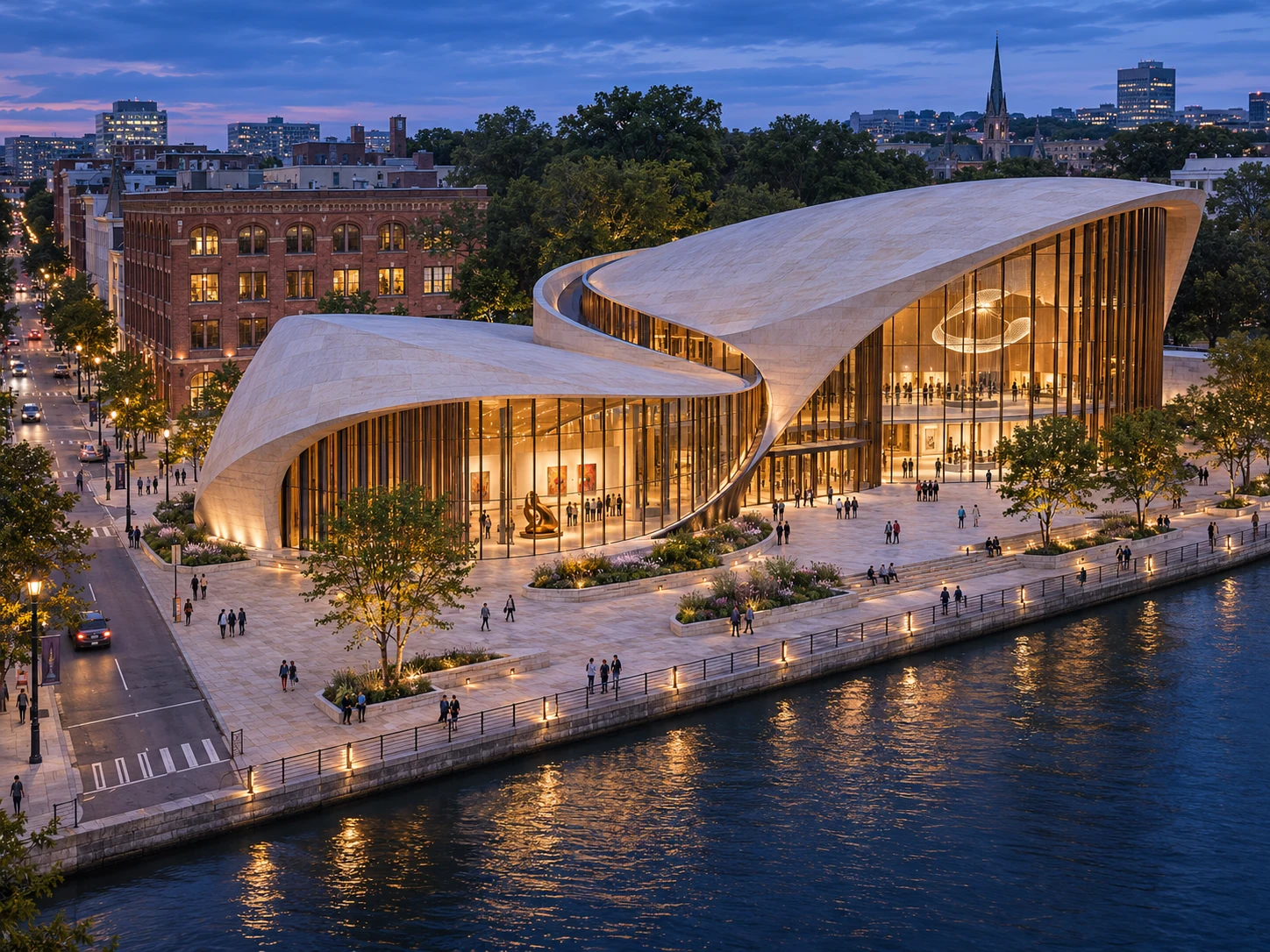
Compare building additions and replacements in real site surroundings.
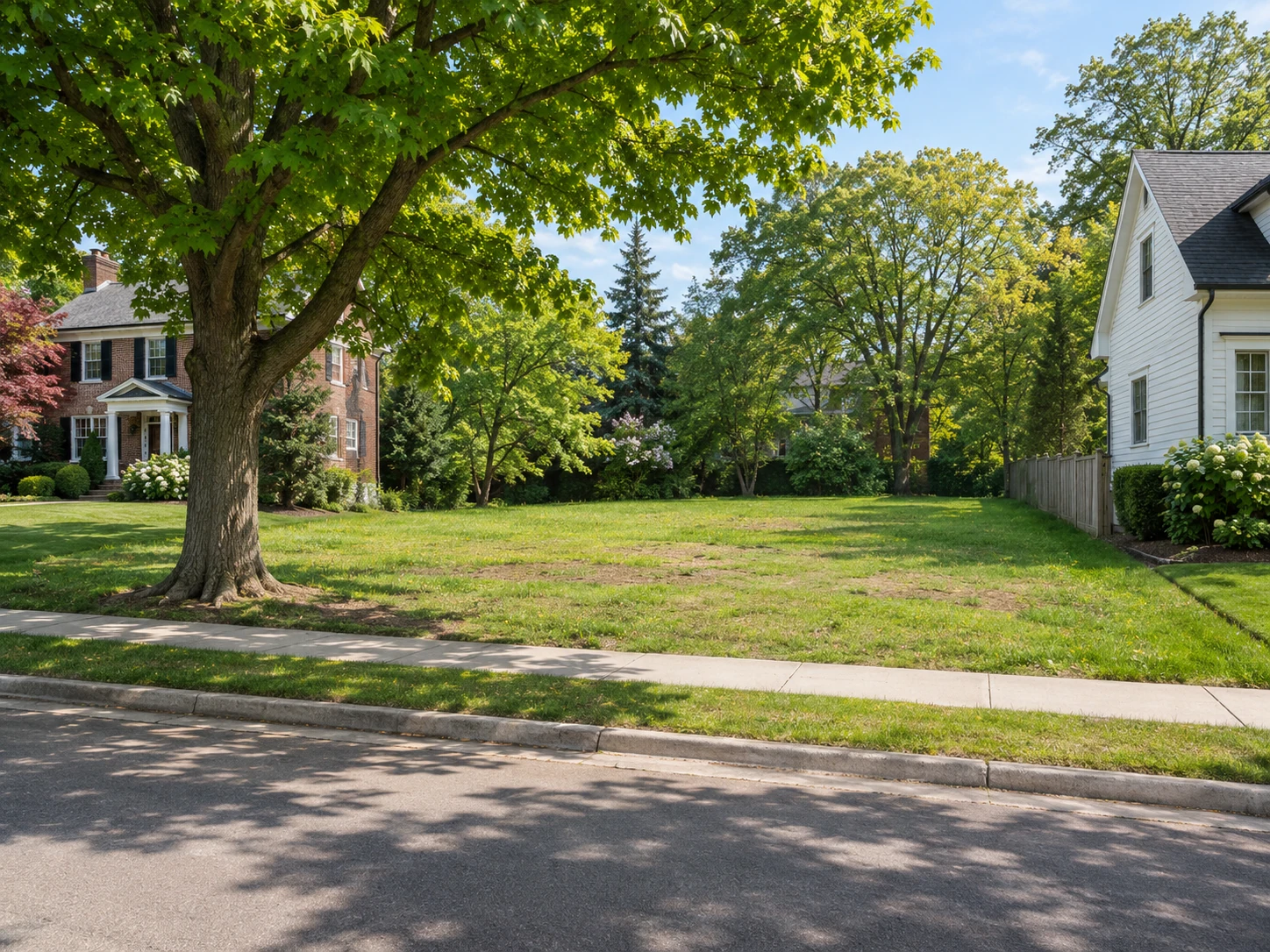
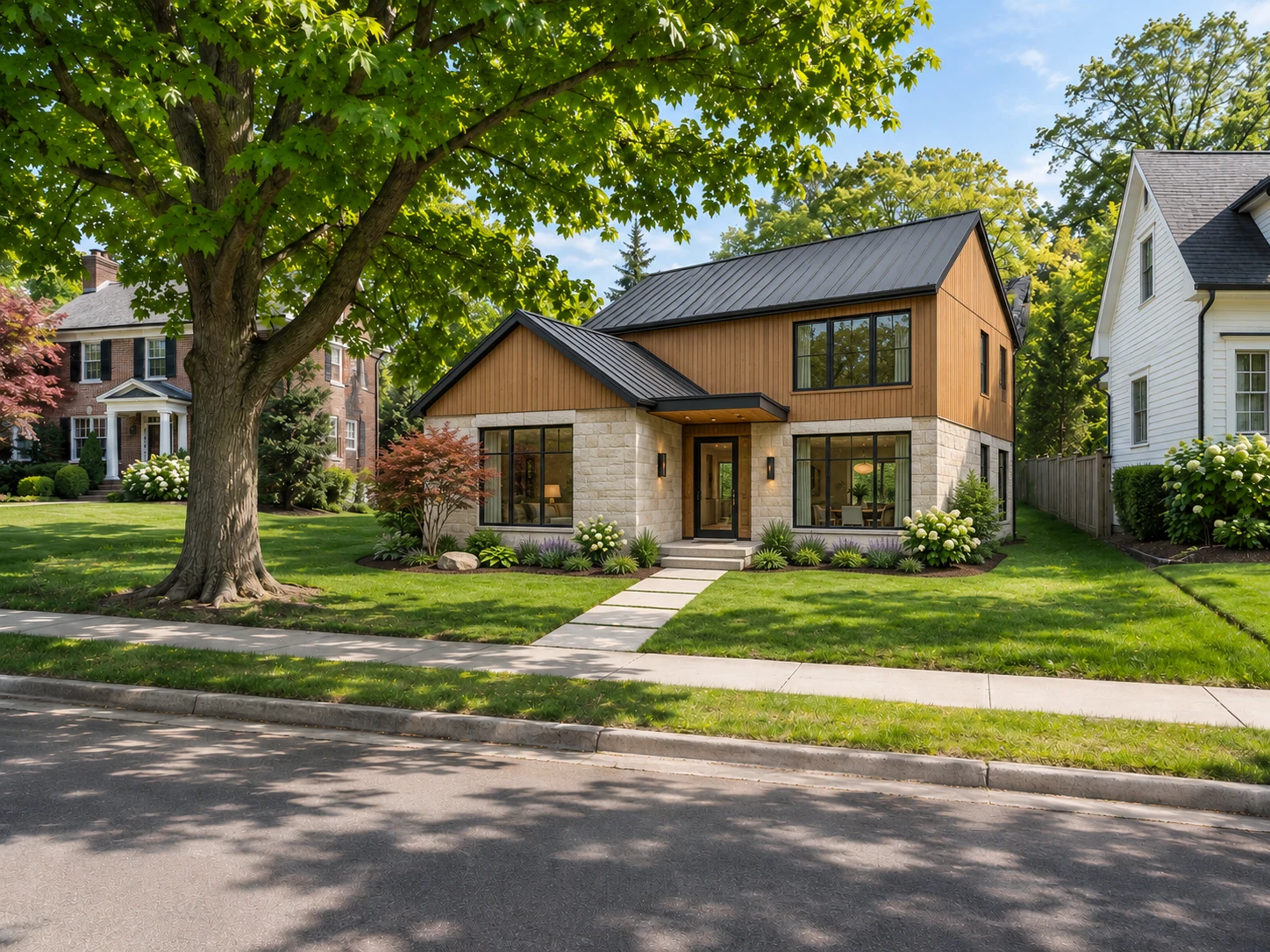
See how a proposed detached home sits between existing houses.
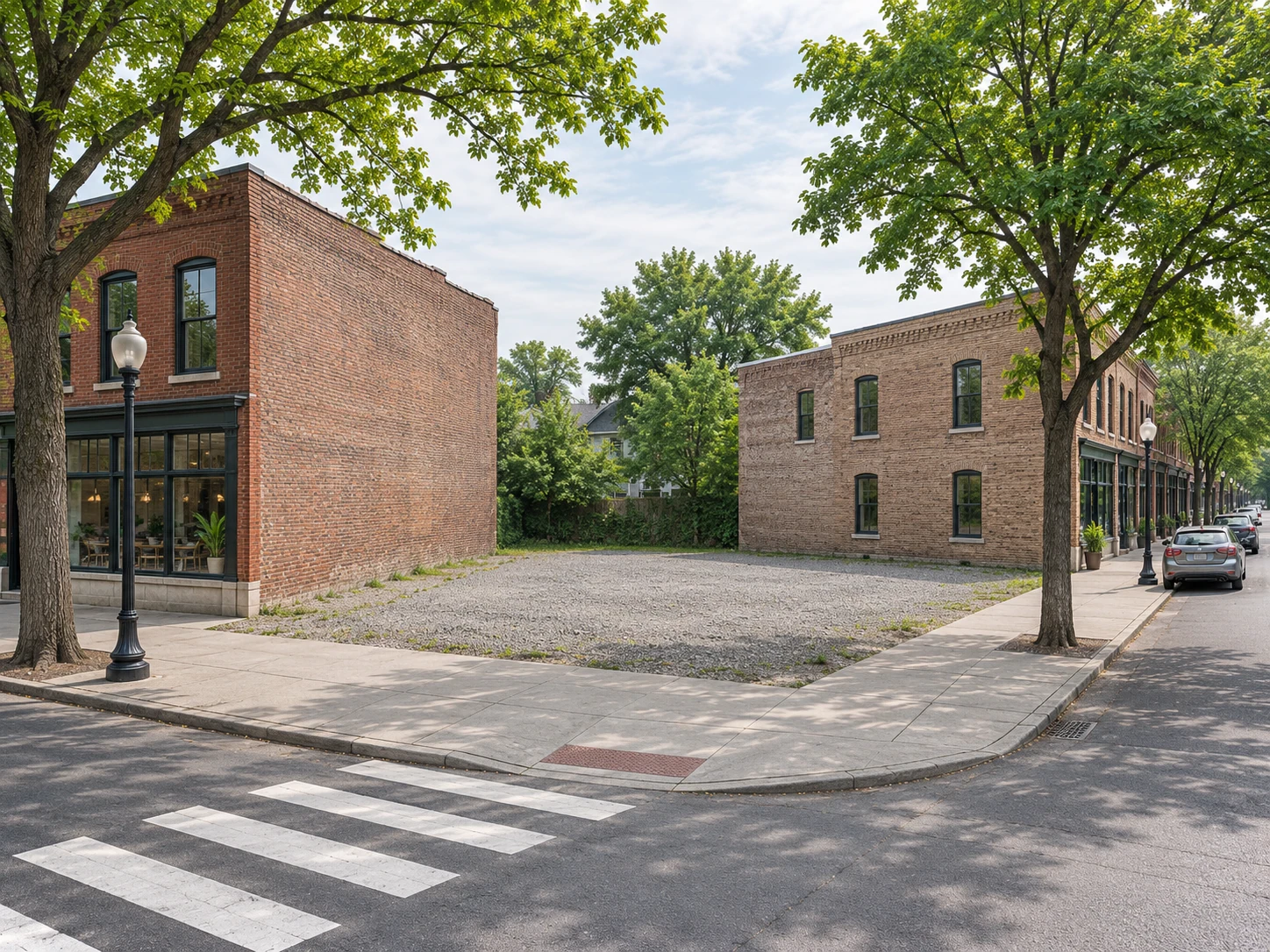
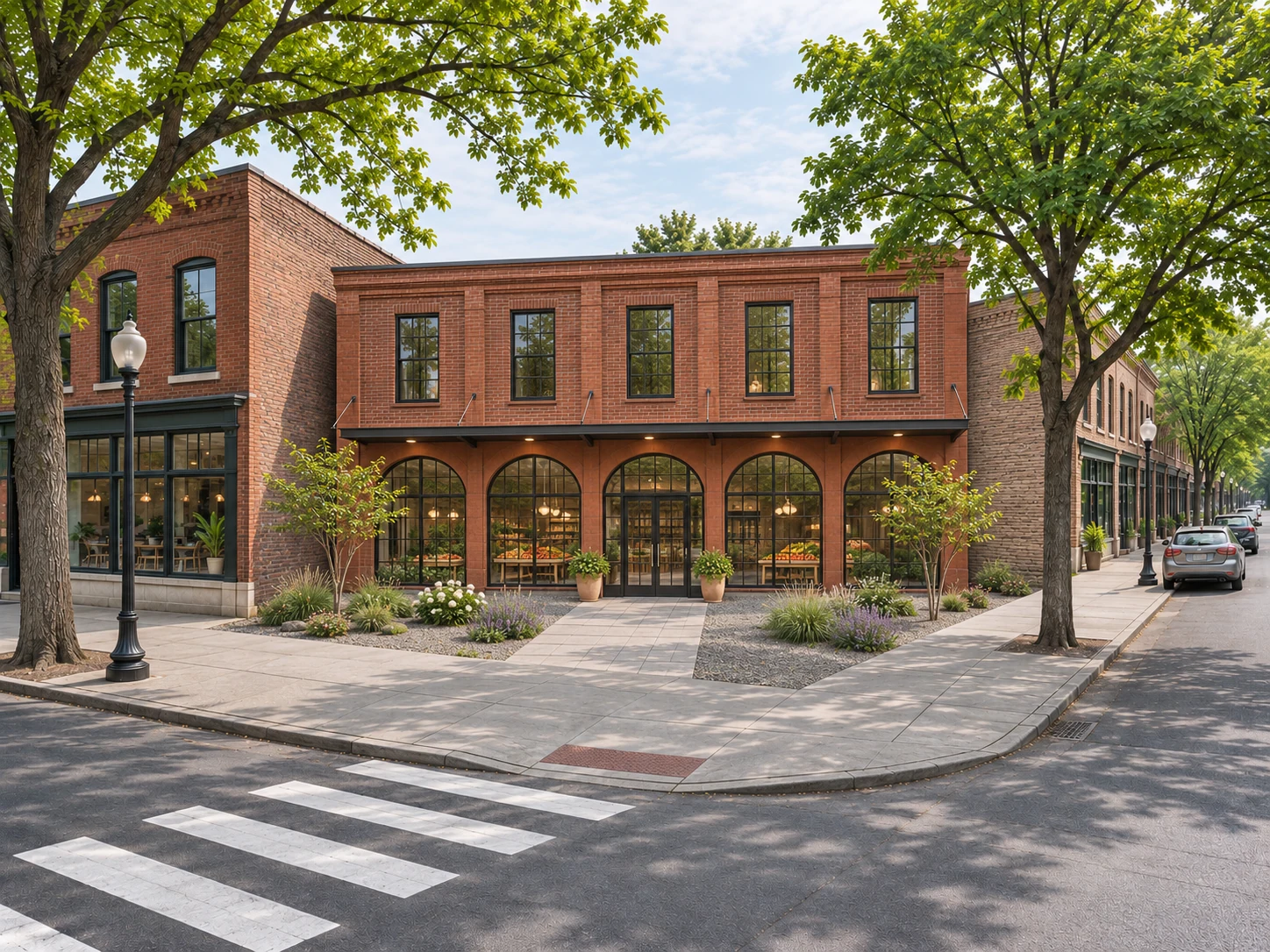
Place a neighborhood market on an open corner lot.
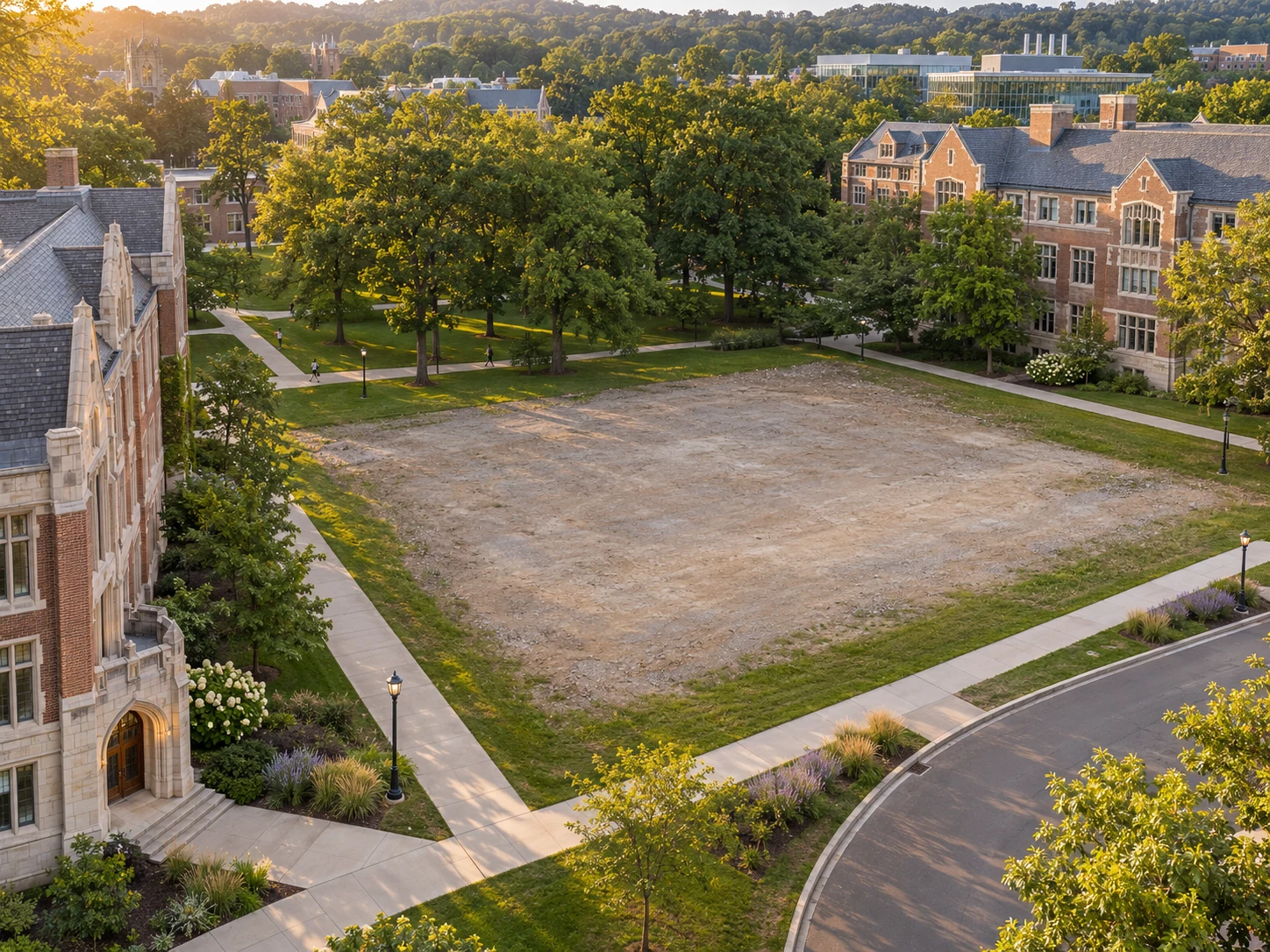
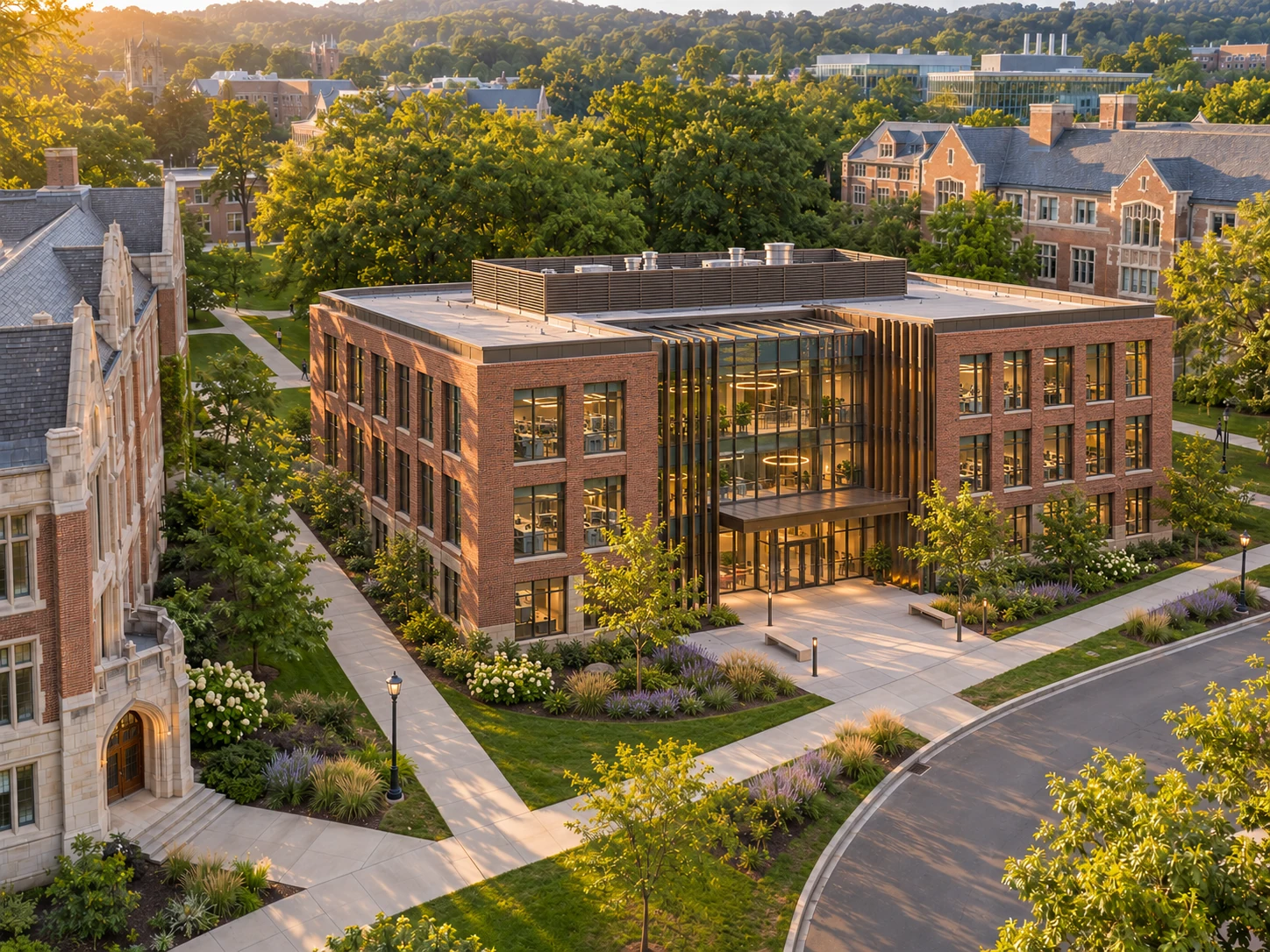
Review a proposed building within existing campus paths.
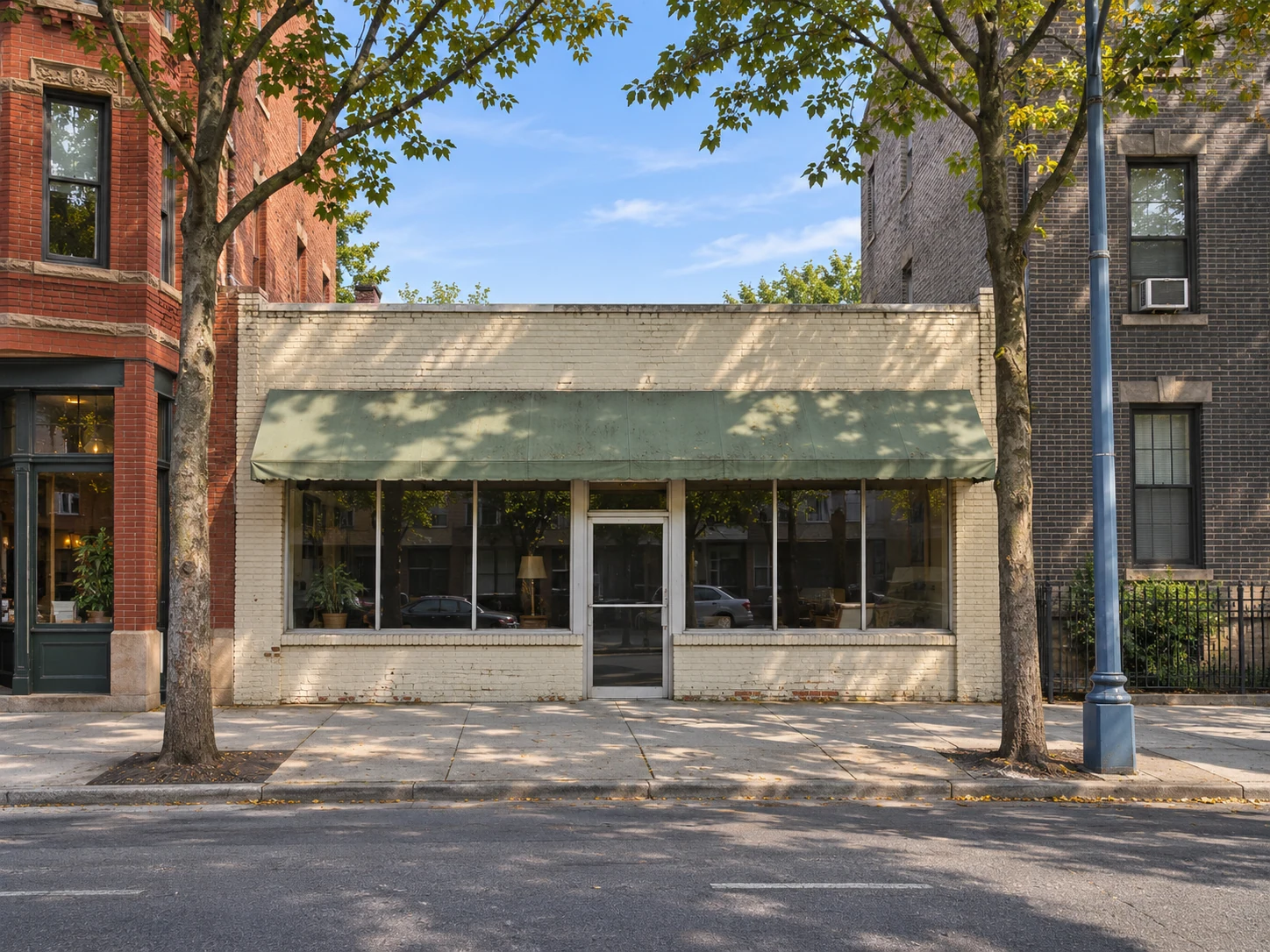
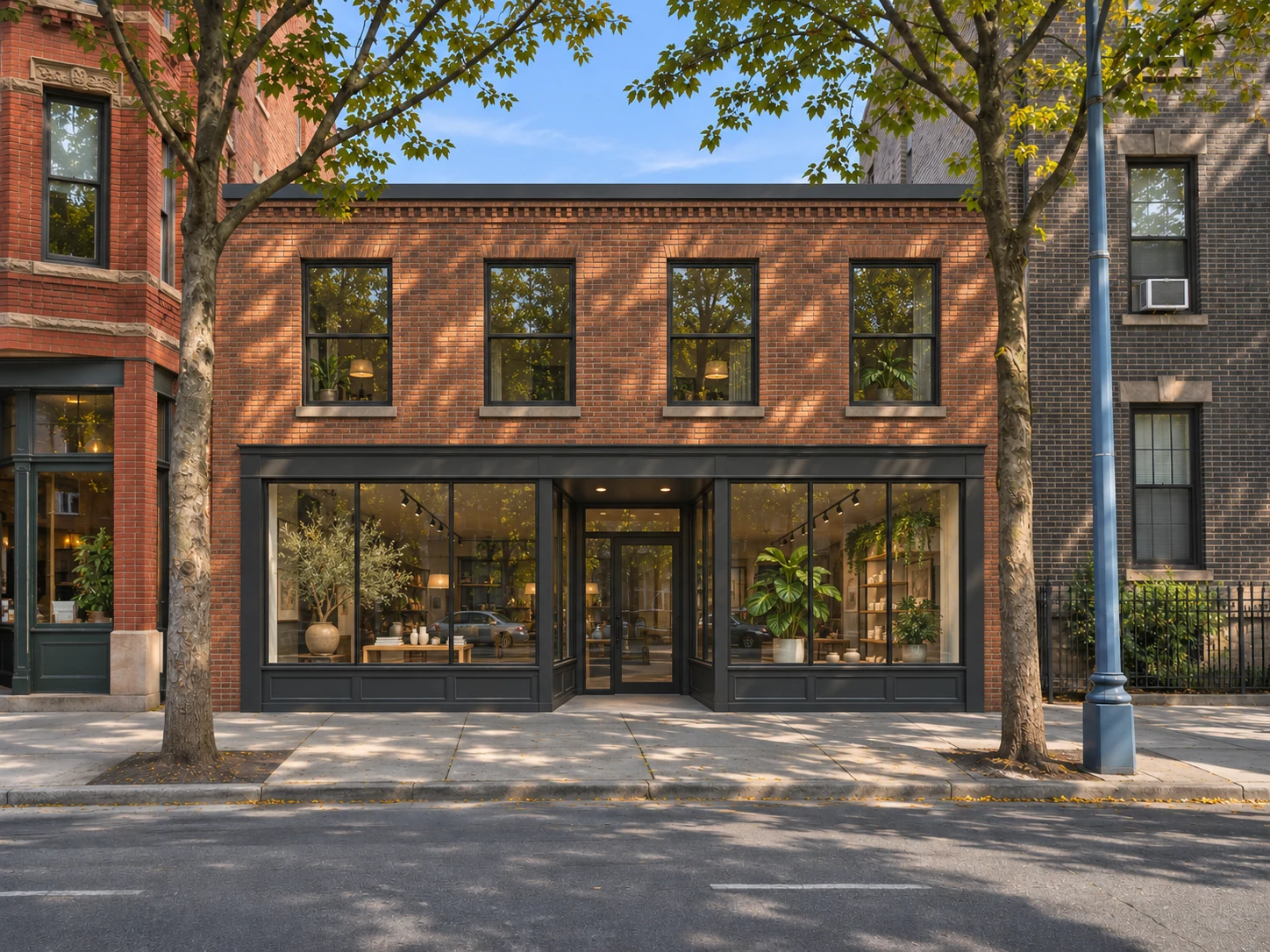
Compare a new retail concept on the same established frontage.
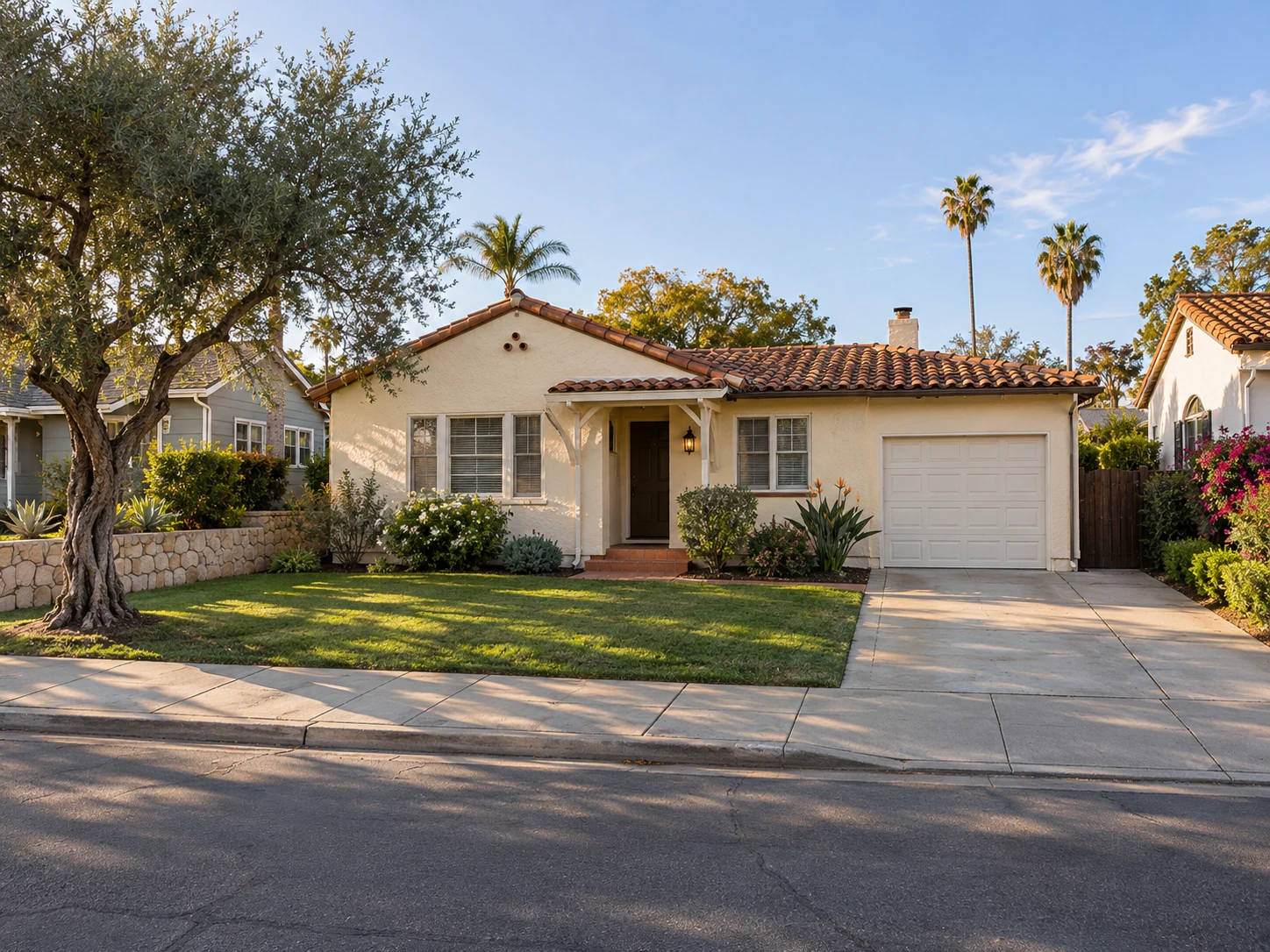
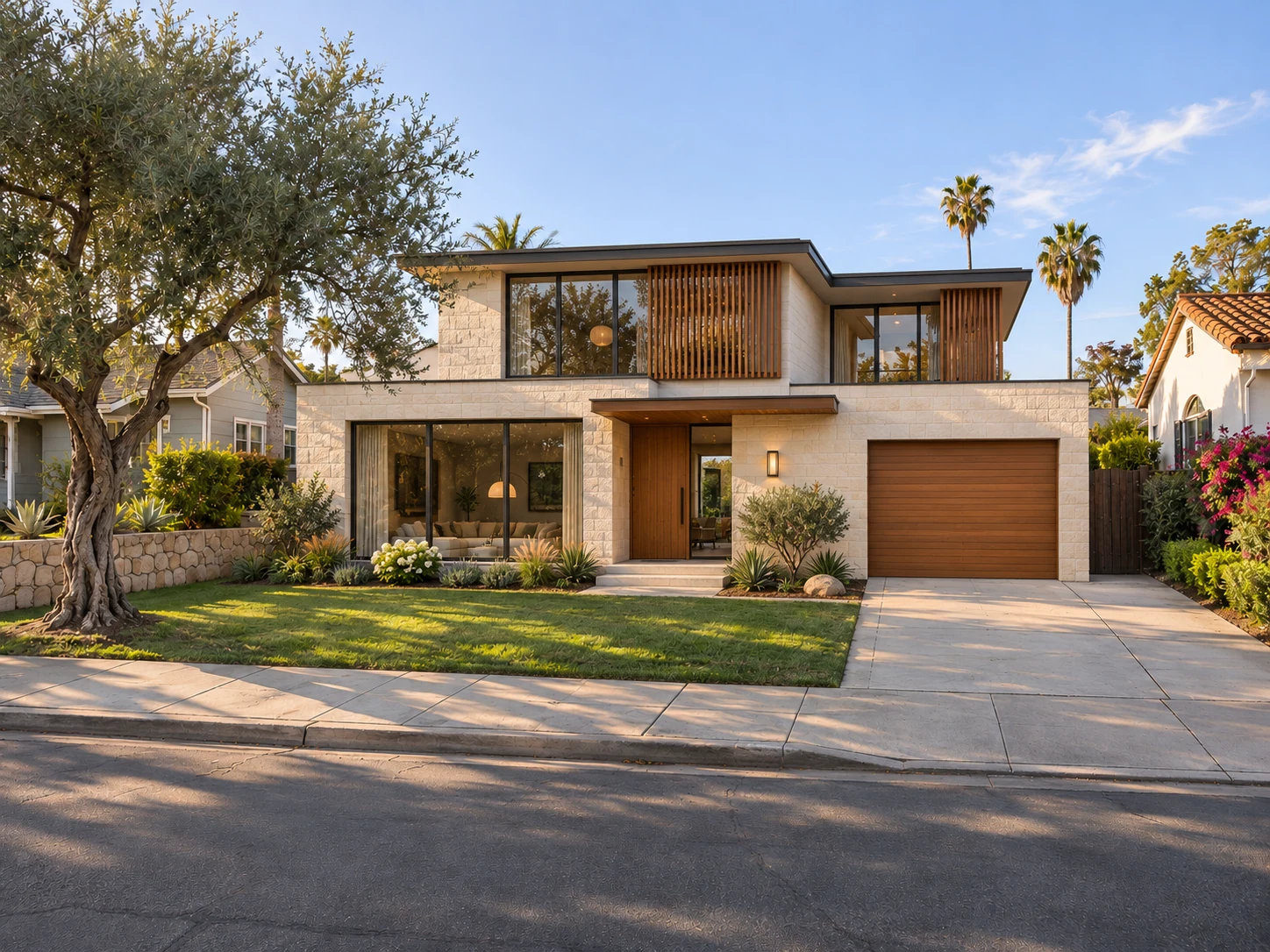
See how a two-story design fits the original parcel.
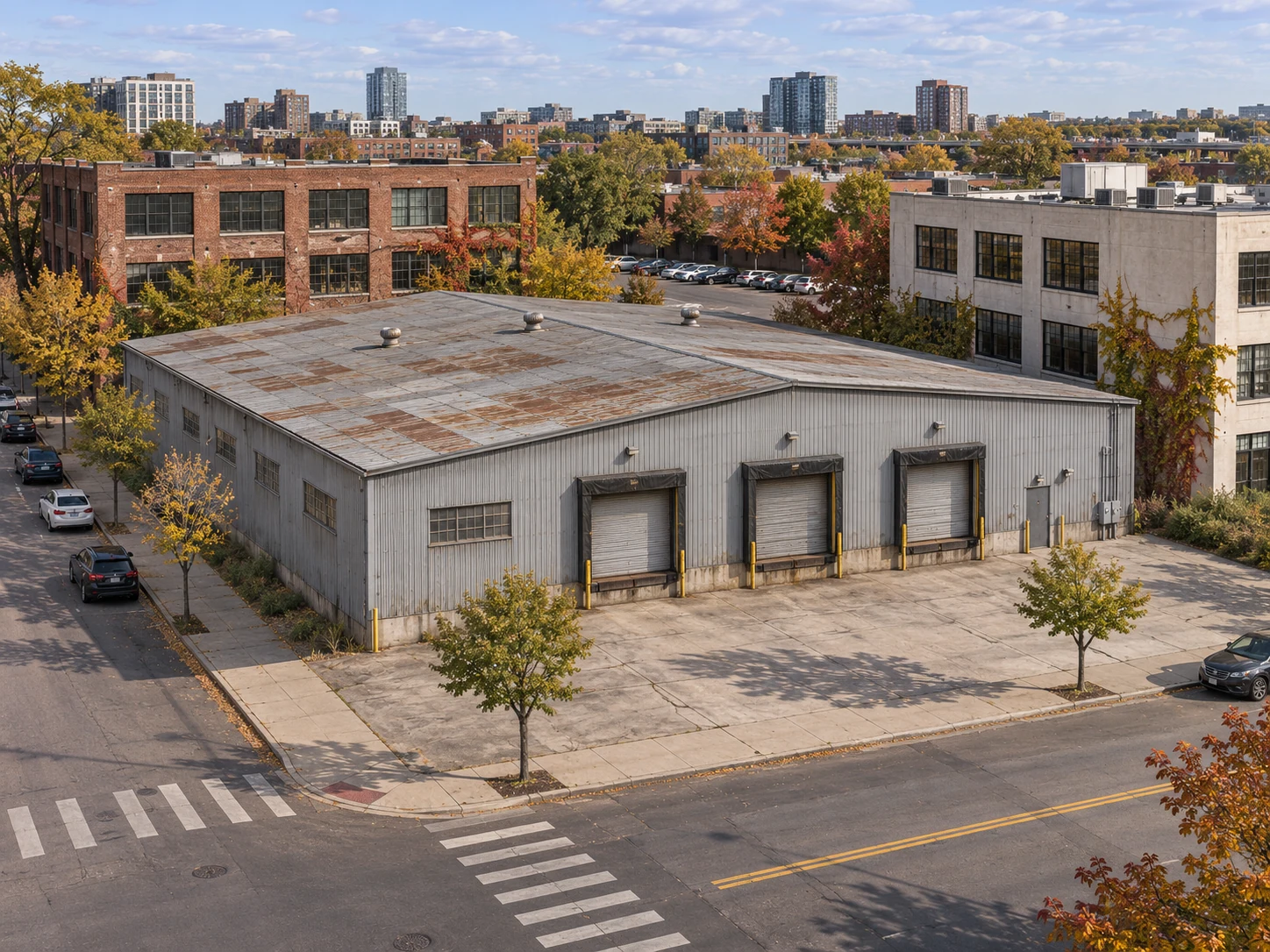
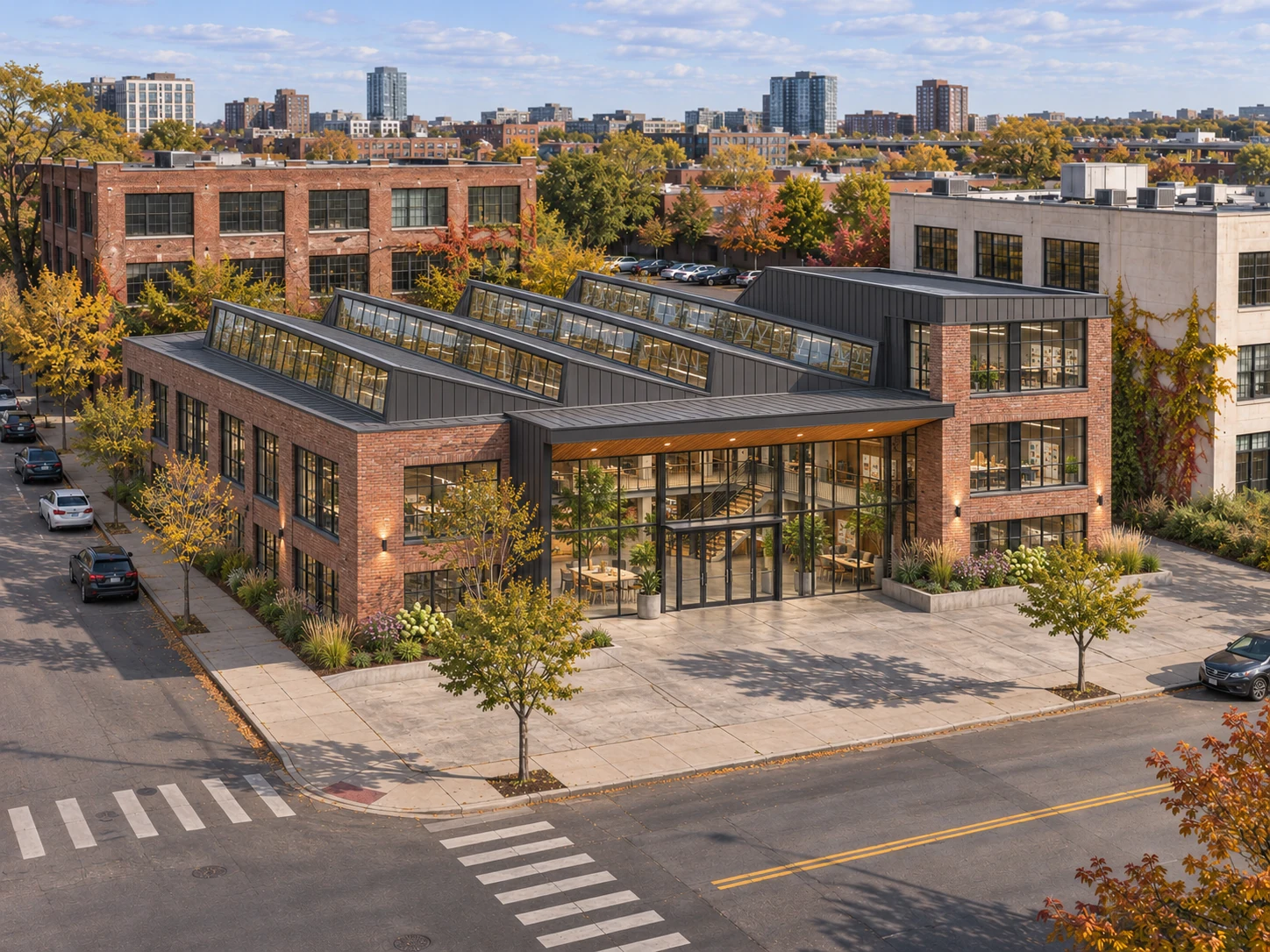
View a studio proposal on an occupied industrial parcel.
Site context rendering places a proposed building into a photograph of its surroundings.
Use a site photo, a building reference, and a marked placement area to compare how the design fits nearby streets, buildings, and landscape.
You can use architectural site rendering to compare a proposal’s street presence at eye level or see how it fits the wider parcel from above. The resulting concept image gives architects, visualization teams, and developers a starting point for discussing scale and placement.
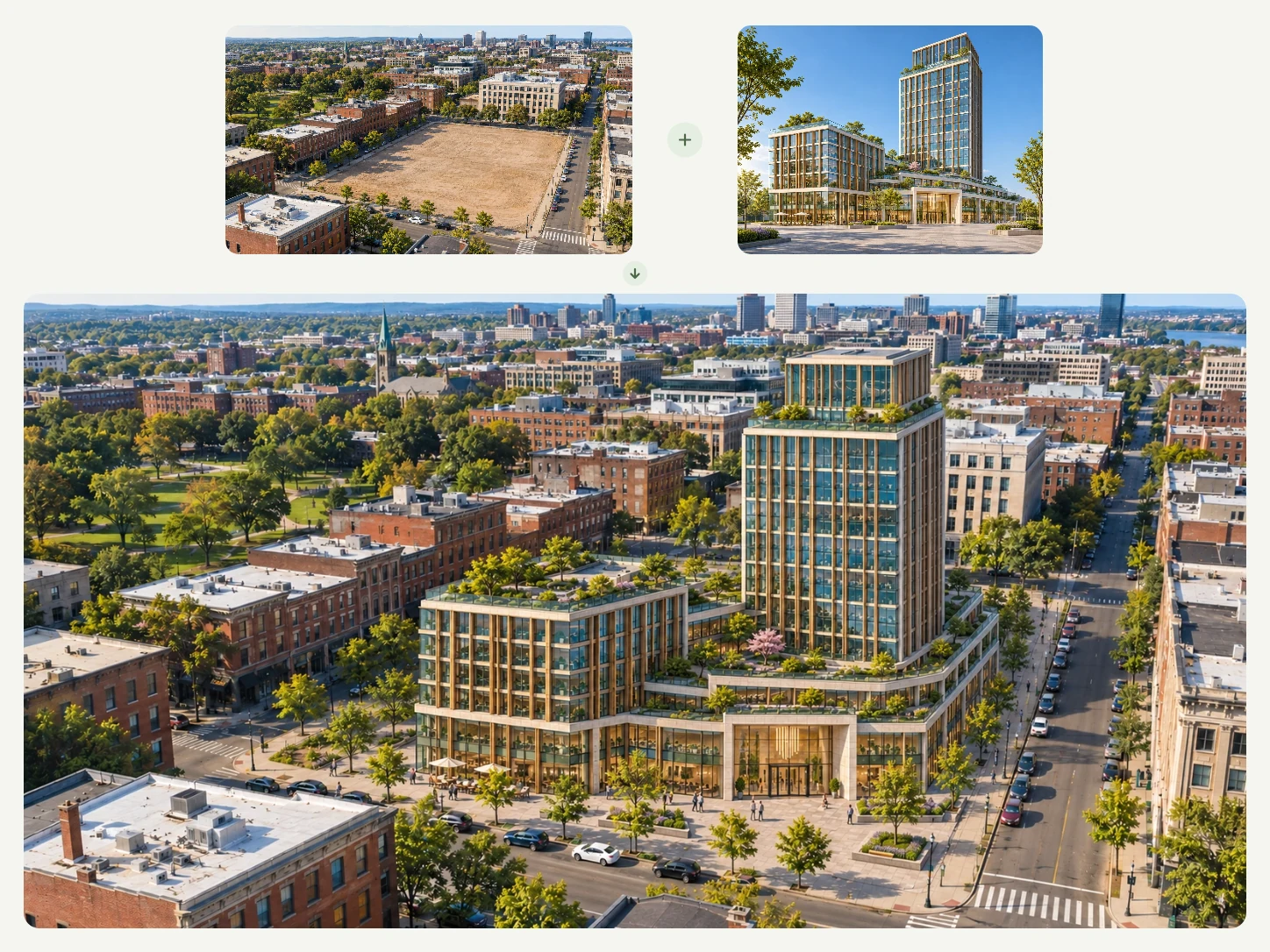
Judge how the building sits next to familiar streets and neighboring properties using a photograph of the actual site.
Show a proposed house, market, or research building on a vacant parcel at an early design stage.
Show how a different building could occupy an existing structure’s location during a redevelopment study.
Use one site photo with different building references to discuss alternative massing and facade ideas.
Use a street-level image for frontage and an elevated view for wider site relationships.
Use before and after images to show where your proposal sits and what changes on the site.
Choose a clear image showing the placement area and surroundings.
Choose a mode and paint the intended building area.
Upload the building reference, choose a view, and generate.
Use an eye-level or aerial photo as the background.
Provide a render, model screenshot, or building image.
Visualize a new building or replace an existing one.
Paint and refine the target area with brush and eraser tools.
Review entrances, frontage, and street presence.
Review massing and wider site relationships.
Prepare a building reference, compare exterior ideas, or explain the design alongside your site study.
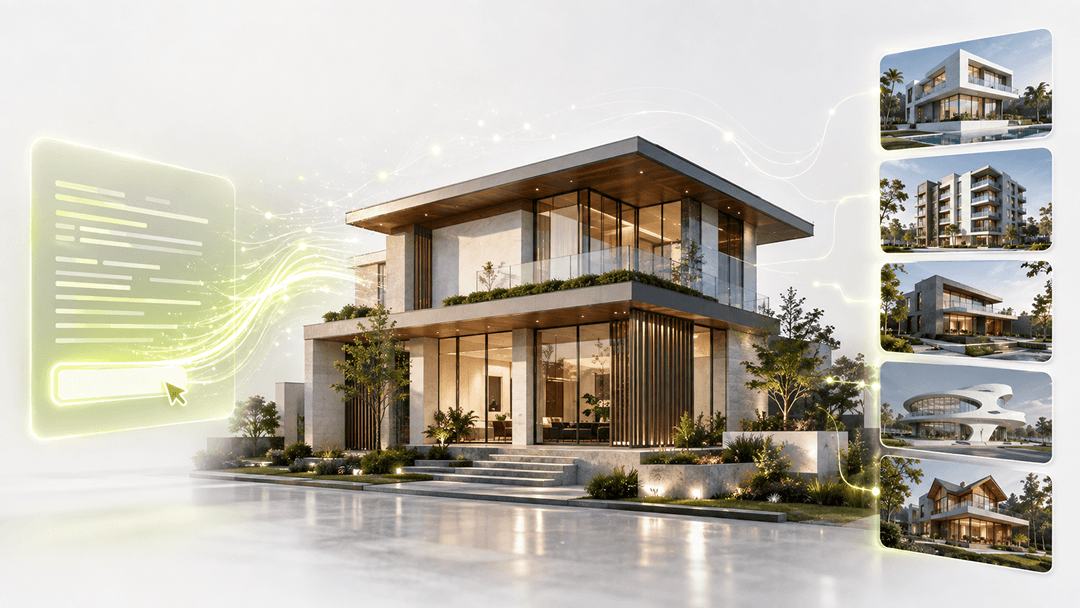
Explore a building concept that can serve as a reference for the site rendering.
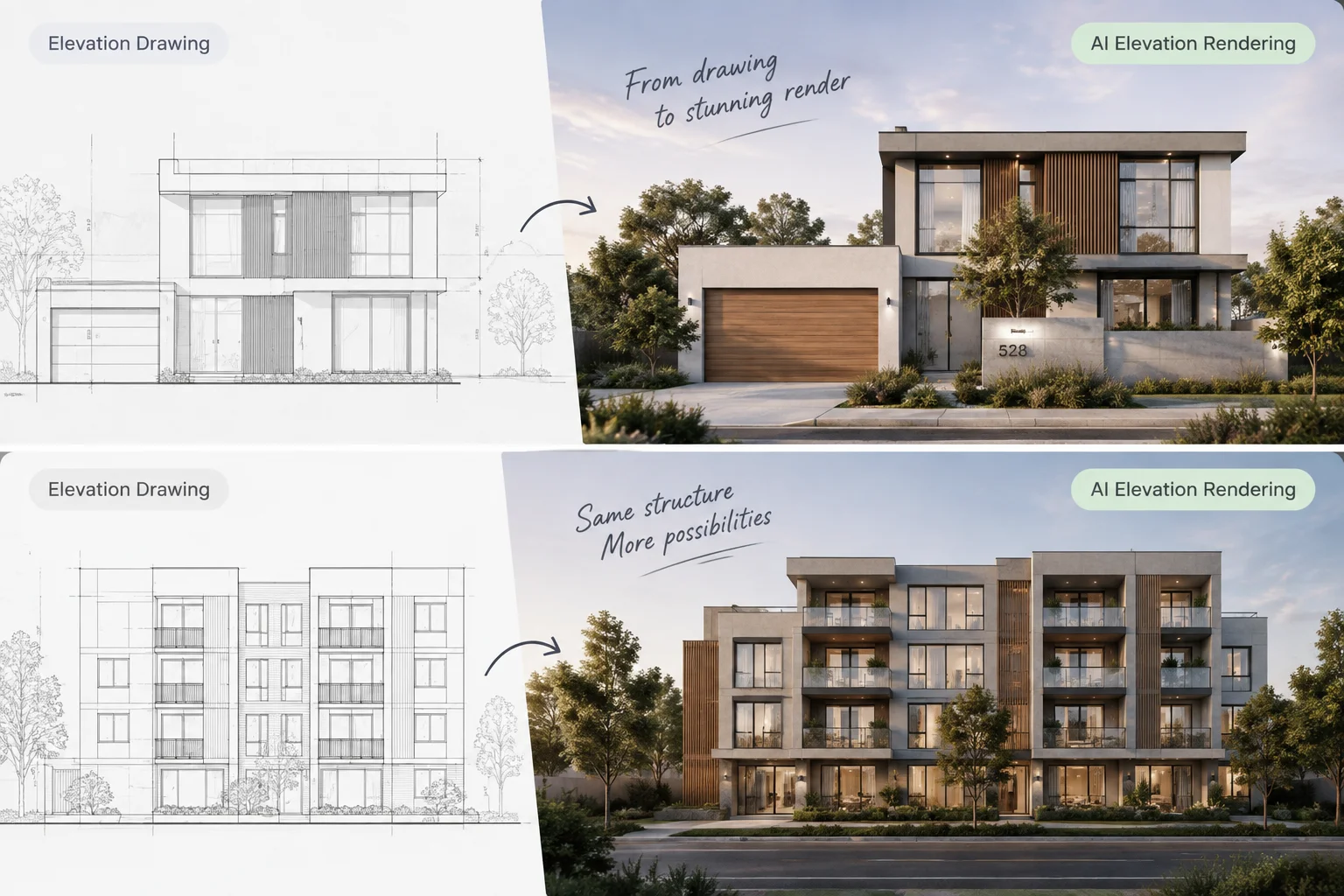
Turn an elevation drawing or sketch into a building render.
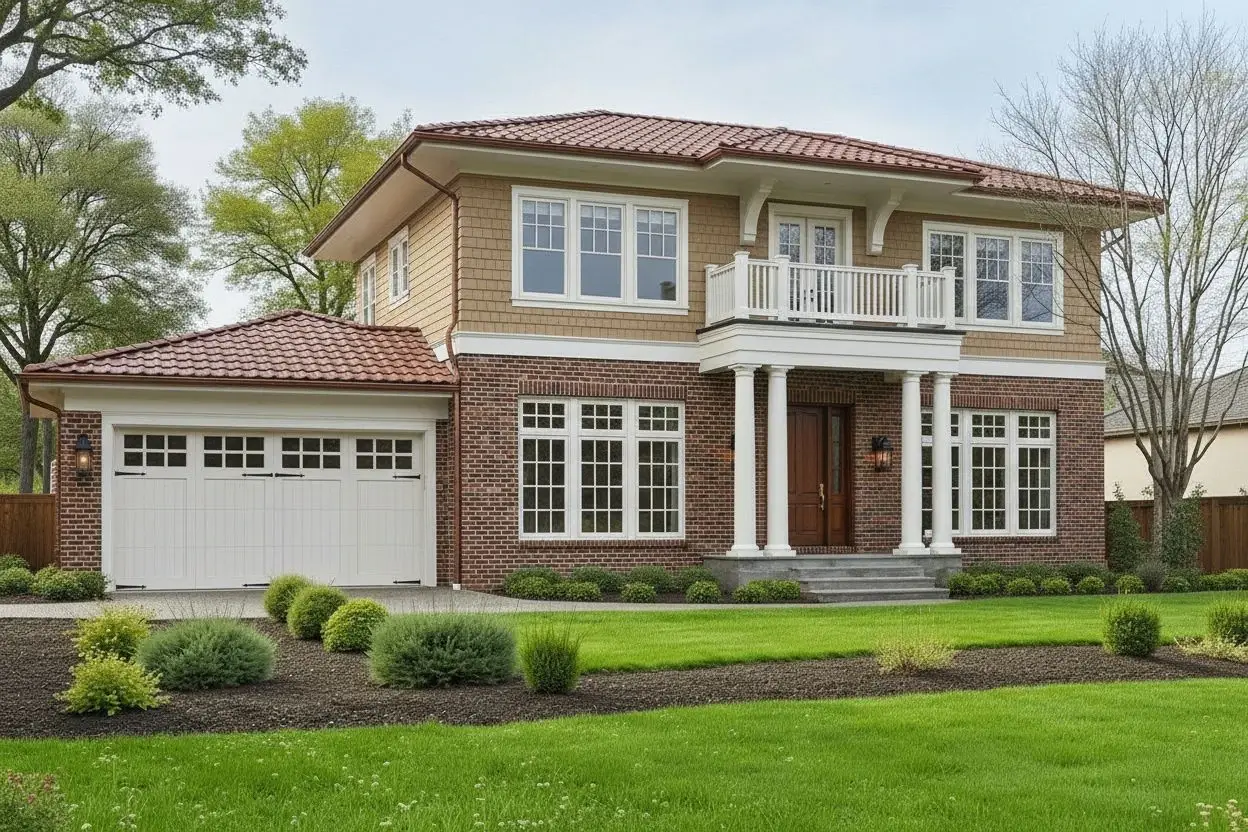
Explore facade materials, colors, and style on an exterior building photo.
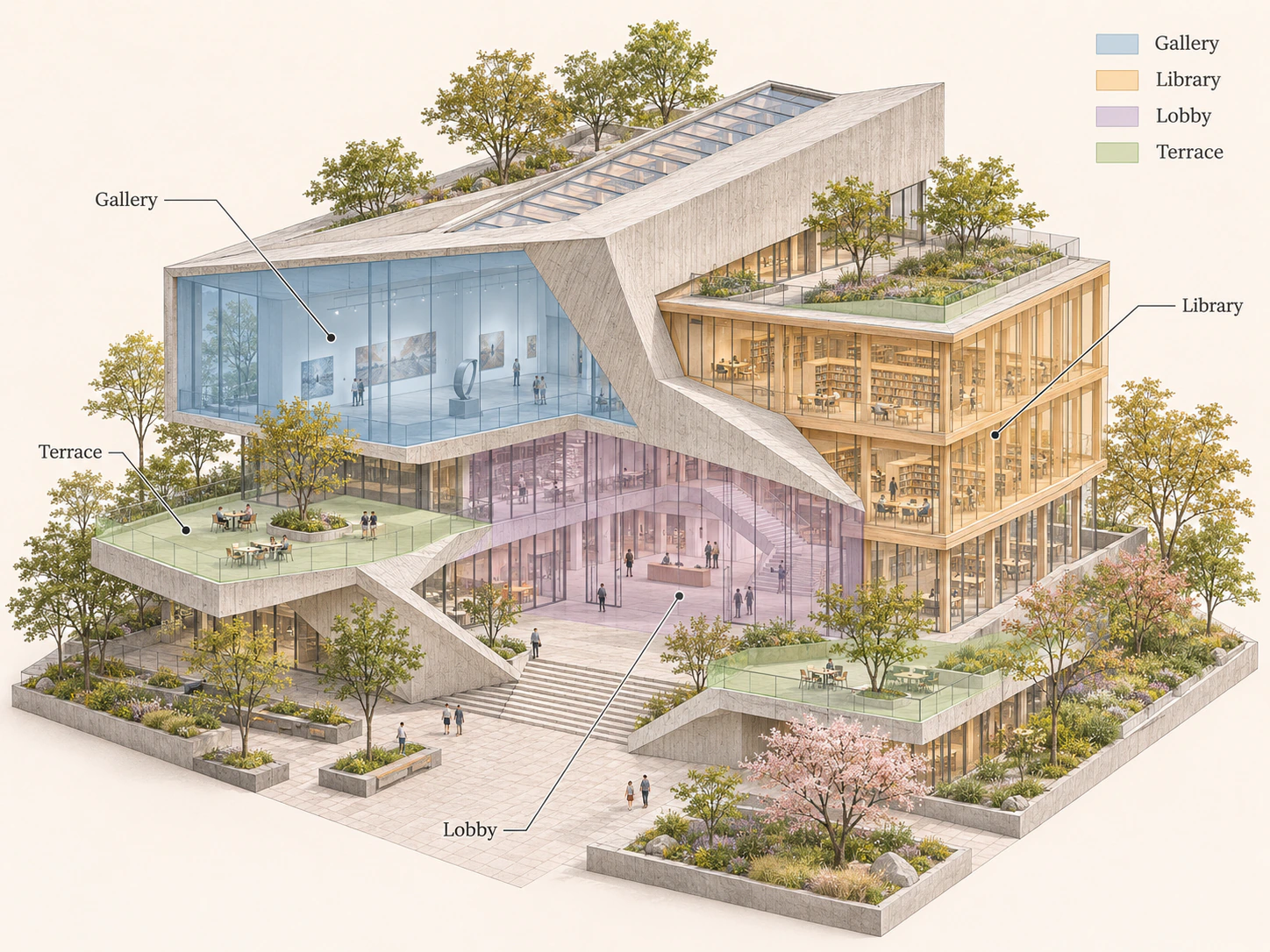
Create diagrams that explain massing, movement, or other parts of the proposal.
Find out how to choose your source images, mark a site, and select a view.
Use a clear photo that shows the full area where the proposed building should sit, with nearby roads, buildings, or landscape visible.
Use a building render, building photo, or clean screenshot of an architectural model showing the roof, facade, and overall form.
Choose Add New Building for a vacant part of the site. Choose Replace Existing Building when a structure already stands there.
After uploading the site photo, click Select Area under Placement Area, paint the target, refine it with the mask tools, and confirm.
Auto infers a suitable view. Eye-Level emphasizes entrances and street frontage. Bird’s-Eye shows the building in relation to the wider site.
Use it during concept reviews and presentations to discuss placement, apparent scale, access, and how the design fits the street or landscape.
Upload a site photo and a building reference to visualize an addition to the site or a replacement building.
Try AI Site Context Rendering